Colors
The Colors page allows you to create and manage reusable color definitions for use in the Text Library, Styles, and Table Styles.
Using predefined colors ensures consistent branding and formatting across all documents.
Purpose of Colors
Colors help you:
- Maintain consistent branding across documents
- Reuse predefined colors instead of manually entering values
- Ensure consistency between styles and table styles
- Simplify color selection for editors
Colors Overview
The Colors page includes:
- A list of all created colors
- A search field to find colors by name, description, or hex value
- View options (grid or list view)
If no colors are created, an empty state is shown prompting you to create your first color.
Create a Color
Click + New Color to open the color creation dialog.
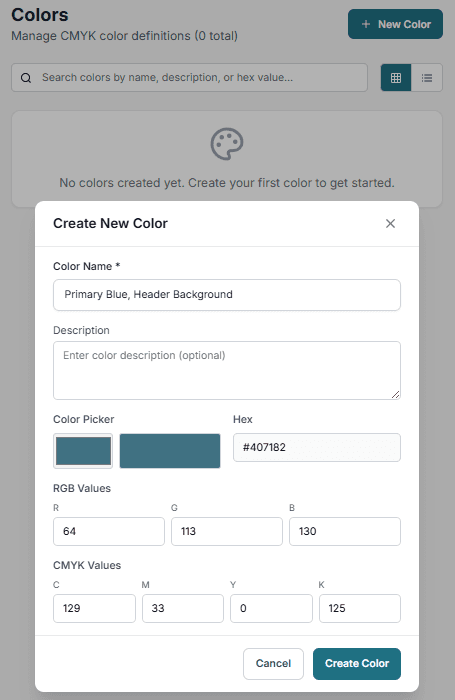
Basic settings
- Color Name (required) – A descriptive name (e.g., Primary Blue, Header Background)
- Description (optional) – Additional context for how the color should be used
Color Configuration
Color picker
Select a color visually using the color picker.
Hex value
Enter or adjust the color using a hex code (e.g., #407182).
RGB values
Define the color using RGB values:
- R (Red)
- G (Green)
- B (Blue)
CMYK values
Define the color using CMYK values:
- C (Cyan)
- M (Magenta)
- Y (Yellow)
- K (Black)
💡 All values update automatically when one format is changed.
Save the Color
Click Create Color to save and make the color available in:
- Styles
- Table Styles
- Other formatting options
Edit or Delete
- Edit – Update name, description, or color values
- Delete – Remove the color from the list
Deleting a color does not automatically update styles already using it.
Best Practices
- Use clear and descriptive names (e.g., Primary, Secondary, Accent)
- Avoid duplicate or very similar colors
- Define brand colors first before creating styles
- Use consistent naming across teams
Related
- Styles
- Table Styles
- Text Library