Text Library
Introduction
The Text Library is a powerful tool that helps you create and manage reusable text elements in Doxis Doc Gen.
It allows you to standardize content, improve consistency, and speed up document creation by inserting predefined text blocks directly into the editor.
Text elements can be organized using groups, making it easier to find and reuse relevant content.
Text Library
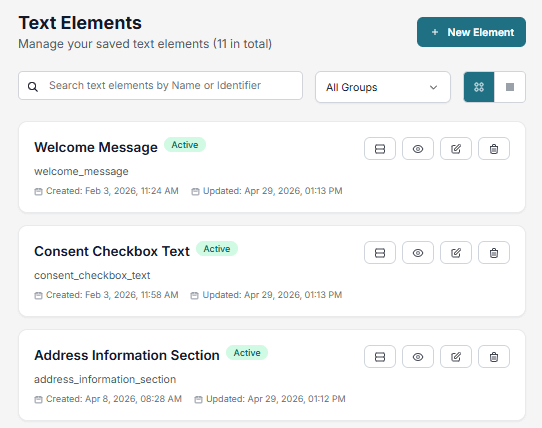
The Text Library tab is where you create, manage, and organize reusable text elements.
These elements can be used across Smartforms and documents to ensure consistent content.
Overview
In this tab, you can:
- Create new text elements
- Search and filter existing elements
- Organize elements using groups
- Edit, view, or delete elements
- Manage element status (Active, Draft, Inactive)
Each element supports rich formatting, tables, and multiple languages.
Page Layout
Search
Search by Name or Identifier to quickly find elements.
Group Filter
Filter elements by group to narrow down results.
View Mode
Switch between:
- Grid view (visual layout)
- List view (compact view)
Text Elements
Each element shows:
- Name
- Identifier
- Status
- Preview
- Created/updated dates
Available actions:
- View
- Edit
- Copy identifier
- Delete
Create a Text Element
Click + New Element to create a new text element.
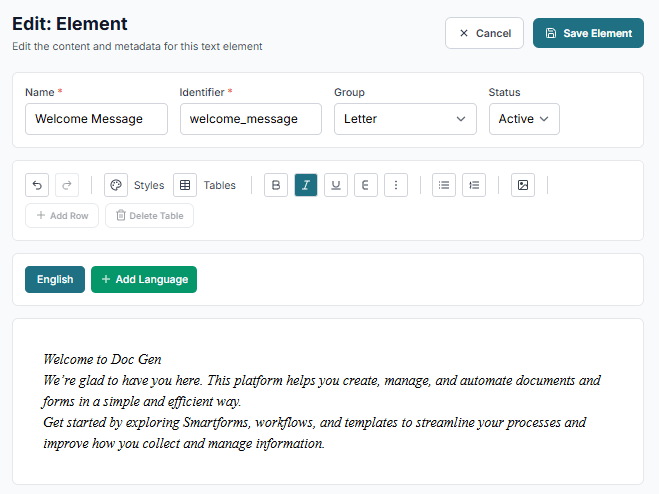
Define:
- Name
- Identifier
- Group
- Status
- Content (using the rich text editor)
- Additional languages
Editor Features
The editor supports:
- Bold, italic, underline
- Alignment
- Lists
- Images
- Styles
- Tables
- Undo/redo
Tables
You can insert tables directly in the editor using the Table button.
This allows you to:
- Insert tables
- Apply predefined table styles
- Add/remove rows
- Format table content
You must create table styles in the Table Styles tab before using them.
Status
Each text element has a status:
- Active – Available in the editor
- Draft – Not yet available
- Inactive – Hidden but saved
Groups
The Groups tab is used to organize text elements into categories.
Groups help you:
- Structure your content
- Filter elements in the Text Library
- Improve usability for editors
Best Practices
- Use clear and consistent naming
- Always assign groups
- Keep elements short and reusable
- Use styles instead of manual formatting
- Use table styles for consistency