Apps - Connect External Services to Your Workflows
The Apps tab allows you to set up and manage secure connections to external services. These connected applications can then be used within your workflows to send data, perform actions, or retrieve information — making your automations more powerful and integrated.
⚠️ Note: To use any of the listed applications in a workflow, you must first set up a connection in the Apps tab
Available Applications
| Application | Purpose | Example |
|---|---|---|
| Microsoft Outlook | Send emails as part of a workflow. | Automatically send a confirmation or status update when a workflow completes. |
| Kivra | Send secure digital mail to Swedish recipients. | Send invoices, agreements, or notifications directly to users’ Kivra inbox. |
| Digipost | Send secure digital mail in Norway. | Deliver official documents, salary slips, or messages to users with Digipost accounts. |
| SFTP | Upload or download files using the SFTP protocol. | Import data from an SFTP server, or export reports/files to an external system. |
| OpenAI | Use AI to analyze, transform, or generate content. | Summarize text, generate structured responses, or classify content dynamically within a workflow. |
How to Connect an App
Before using an app in a workflow, you need to set up a connection.
- In the Workflow application, go to the Apps tab from the main navigation.
- Click the Add Connection button.
- A list of available applications will appear. Select the app you want to connect.
- Follow the on-screen instructions to provide the necessary credentials (e.g. API key, username, password, etc.).
- Once connected, the app will appear in your Connections list on the main Apps page.
You can now use the connected app in your workflows. Each connection provides its own set of available actions, which you can add and configure based on what the app supports.
Managing Connections
After connecting an application and using it in your workflows, you may want to manage or update the connection.
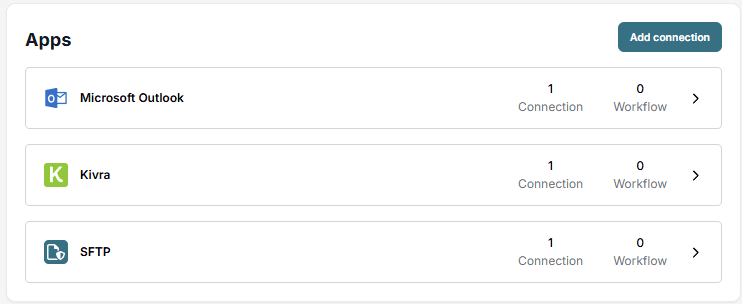
To do this, go to the Apps tab. The main view displays a list of all your active connections, grouped by application. Here, you can also see how many connections exist for each app, and how many workflows are using them.
To manage a specific connection, click on the corresponding application. This will take you to a detailed page where you can:
- Edit the connection name
- Reconnect (e.g. if credentials have changed or expired)
- Test the connection
- View associated workflows
- Delete the connection
This makes it easy to keep your integrations organized and ensure everything is working as expected.