Triggers
A trigger is a component that will kick off a workflow under specified conditions.
Smartform
A Smartform can trigger a workflow. The reason could be to update data from a Smartform into other systems or look up data. The options are endless.
Submit
You can define that Submit in a Smartform is the action that will trigger the Workflow. When selecting this trigger action you will have to select which of your active Smartforms that will be connected as triggers.
Element Change
A Smartform can trigger a workflow when an element is assigned an active workflow from the “Integration: Workflow - On Value Change” dropdown in the element properties. When the selected element’s value changes, the assigned workflow is triggered. The workflow can then collect data from the Smartform, retrieve additional information via a REST API, and update the Smartform with new data.
For example, when a user enters an organization number, the workflow can automatically look up the company details and populate fields such as the company name and other relevant information.
On load
This trigger activates the Workflow when a Smartform is loaded or opened by a user for the first time. It is useful for preparing or pre-filling data before the user begins interacting with the form. For example:
- Use an API call to retrieve user-specific data (e.g., name, membership status, or custom fields) and pre-fill the Smartform.
Webhook
The Webhook trigger starts a workflow when an external system sends an HTTP request to a Doc Gen-generated webhook URL.
It is used to integrate Doc Gen workflows with external systems in an event-driven, system-to-system manner.
Purpose
Use the Webhook trigger to:
- Start workflows from external applications or services
- React to events occurring outside Doc Gen
- Receive and process data from APIs, integrations, or background jobs
Webhook URL
When the Webhook trigger is configured, a unique webhook URL is generated.
- The URL is used by external systems to trigger the workflow.
- Each environment has its own webhook URL.
Important:
When promoting a workflow between environments, the webhook URL must be updated in the external system to match the target environment.
Example: Sending a Webhook Request
This example shows how an external system can trigger a workflow using a webhook call.
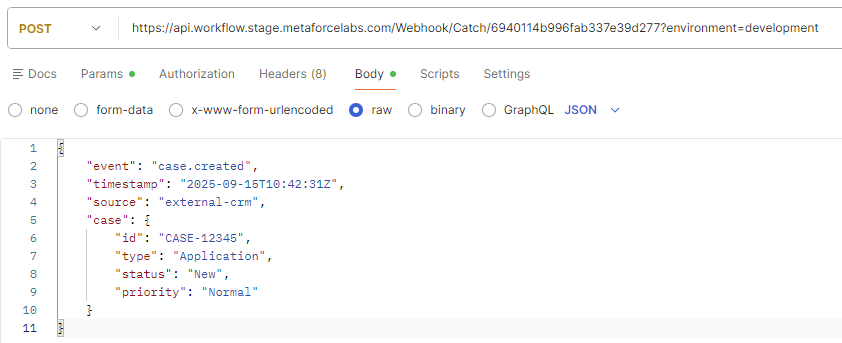
When the above request is sent to the webhook URL, the associated workflow is triggered, and the payload data becomes available for processing within the workflow.
Response Format
The Response Format determines how the incoming webhook payload is structured and made available inside the workflow.
- Flattened (default)
Nested JSON objects are flattened into key–value pairs, making the data easier to reference in workflow actions.
Notes:
- The selected response format is applied when consuming webhook data.
- The response format cannot be changed for webhook requests that have already been received.
Test Setup
The Webhook trigger provides a built-in test mechanism to verify that the trigger is correctly configured.
Steps:
- Copy the generated webhook URL.
- Send a request to the URL from an external system or test tool.
- Click Test Trigger to validate the most recent request.
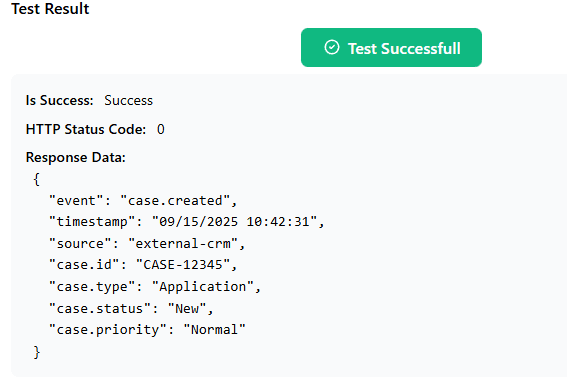
If no requests are found, a new request must be sent before the trigger can be tested.
Environment Handling
Webhook triggers support environment-specific execution.
Supported environments:
- Development
- Test
- Pre Production
- Production
Environment resolution:
- Add the query parameter
?environment=ENV_NAMEto the webhook URL, or - Include the HTTP header
x-centerpoint-environment.
If no environment is specified:
- The Development environment is used by default.
- If no workflow exists for the resolved environment, the workflow will not run.
Payload Availability
The webhook request payload is automatically available to subsequent workflow actions.
- Payload data can be used in REST actions, condition logic, archive actions, and other workflow steps.
- Available fields depend on the selected response format.
Cron
Cron is a system for scheduling tasks at specific times or intervals, commonly used for automation and repetitive workflows. It’s a flexible and powerful way to ensure your tasks run exactly when you need them.
Cron (Standard)
For users familiar with cron expressions, this option provides precise scheduling capabilities. Cron expressions define workflows that run at specific intervals, such as:
- 0 0 * * * — Runs daily at midnight.
- */15 * * * * — Runs every 15 minutes.
- 0 9 * * 1-5 — Runs at 9:00 AM on weekdays.
Cron Calendar
This user-friendly interface lets you schedule triggers without writing cron expressions. You can:
- Set specific trigger times (e.g., 12:00 AM UTC).
- Choose repeat intervals like daily, weekly, or custom (e.g., every 3 days).
- Select specific days of the week for the trigger (e.g., Monday, Wednesday, and Friday).
Editor
Editor Onload
This event triggers the Workflow to retrieve custom input data before the Editor document (DXML file) is created by a user. It’s ideal for initiating processes that need to run when creating DXML begins, such as pre-filling fields or fetching relevant data
QA Before Completion
This event triggers the Workflow during the quality assurance phase, just before the editing process is finalized. It can be used to verify data or ensure certain criteria are met before completion.
Editor on Completed
Triggers the Workflow when the editing process is fully completed. This is useful for actions like notifying stakeholders, updating archive, or initiating subsequent steps in the process.
PDF Created
This event triggers the Workflow when a PDF version of the online document is generated. It’s particularly helpful for tasks like saving the document to a specific location, sharing it with other systems, or sending it to a client.