Metatool
This guide provides a comprehensive overview of the Metaforce MetaTool Integrated Development Environment (IDE). MetaTool is a specialized IDE designed for Windows, tailored for creating and managing documents, document structures, scripts, texts, and other resources. These components are crucial for assembling Metaforce MetaLogic files, which can be executed as standalone applications. This manual is primarily aimed at developers who intend to create Metaforce applications using the MetaTool IDE. It serves as a detailed reference guide, offering in-depth information on features and functionalities, rather than a basic tutorial.
Important news in Interact version 10 and upwards
To run Metaforce effectively, your system must now be equipped with a 64-bit processor. When utilizing an MF Solution, ensure that the ODBC definition is also 64-bit compatible. For those without a 64-bit computer, it is recommended to continue using Metaforce Version 9.
MetaWrite 10 Installation: MetaWrite 10 is versatile and can be installed on both 32-bit and 64-bit systems. However, when installing any version of Interact, particularly from version 10 onwards, make sure to install the programs in the “Program Files” directory rather than the “Program Files (x86)” directory to ensure proper functionality.
Licensing: Starting with Interact Version 10, a license file is required to operate Metaforce products. You will find a unique license key specific to your company within the installation package. This file must be named “licens.xml” and should not be altered in name.
Recent Updates:
- MetaEngine and Associated Programs: Transitioned to 64-bit architecture to enhance performance.
- Data Converter Plugin Support: Added support for new data conversion plugins.
- Data Tree Attribute Enhancements: Improved fields within data trees for better structure handling.
- Scripting Improvements: Introduced new methods for more efficient scripting.
- Comprehensive Logic File Search: Enhanced search capabilities across entire logic files.
- MetaWrite Enhancements: MetaWrite now supports installation on both 32-bit and 64-bit systems. Additionally, a new font configuration tool has been implemented.
Summary
MetaTool is designed to generate output data with excellent design and functionality. This tool is responsible for creating document logic files, referred to as MetaLogic files. These files manage all aspects of document design, including typography, font sizes, tables, forms, business graphics, images, appendices, and more
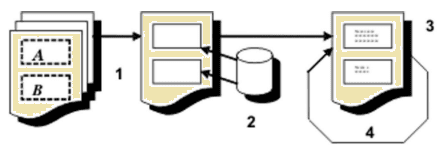
Using MetaTool as a design tool offers a significant advantage through the ability to reuse fragments or objects across multiple documents. It is beneficial to conduct a comprehensive review of all elements at the start of the design process to identify common components that can be utilized repeatedly. The basis of formatting in MetaTool involves text elements, static fragments (such as forms), document templates (similar to those in Microsoft Word), and scripts written in VBScript or JScript. (Refer to the Properties chapter for more details.)
- Document Review: Examine all documents intended for production. Obtain a holistic overview and pinpoint the elements that are common across various documents. This process is streamlined if the organization already adheres to design guidelines that dictate preferred typefaces, font sizes, margins, etc. With MetaTool, you can systematically catalog components of each document and isolate recurrent fragments into common components for reuse. The documents you develop will contain references to these resources rather than duplications, enhancing efficiency. Consider referencing other documents (segment documents) to further modularize the content.
- Data Identification: Determine the data required for generating each document to ensure all necessary information is incorporated accurately.
- Document Creation: Assemble the document and its constituent fragments. This step involves integrating texts, scripts, and other document objects or fragments into a cohesive unit.
- Iterative Refinement and Testing: Continue refining the document until it is finalized. Test the document with actual data to validate its functionality and ensure it meets the intended requirements.
Formatting model
This overview details the step-by-step process of formatting documents within our system. Each step is designed to ensure that content is appropriately laid out according to predefined templates, optimizing space utilization and maintaining a consistent presentation across pages. Below is the structured approach we follow to achieve precise document formatting:
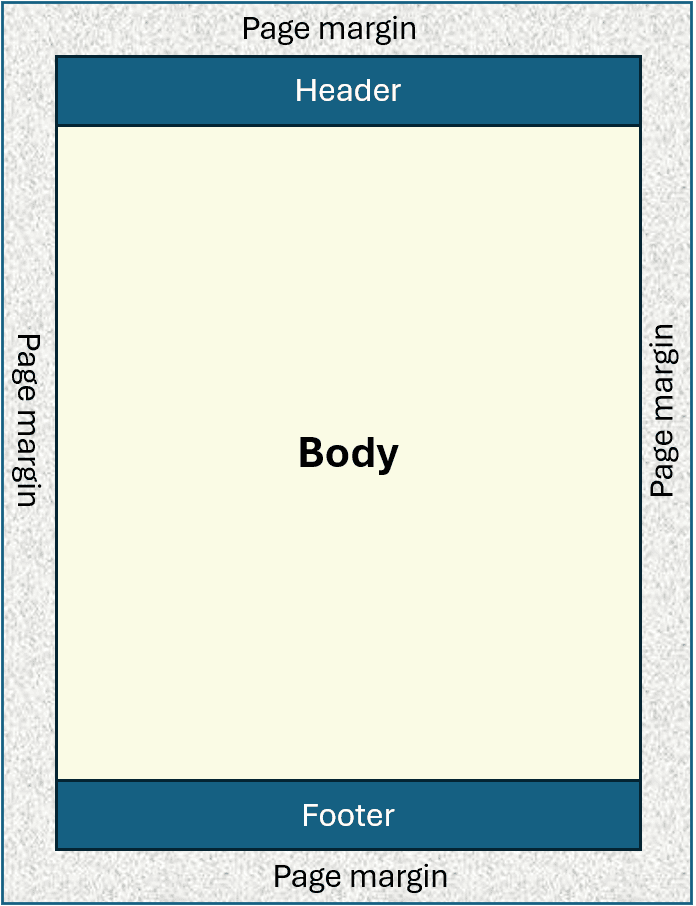
- Initial Page Setup: When a new page is created, the margins defined in the page template are applied. The heading for the first page is set up, reducing the available space for the main body content below it.
- Footer Placement: The footer for the first page is then created, further reducing the space available for the body content above it.
- Body Content Creation: The main body of the page is laid out. If the content exceeds the available space, it is arranged across subsequent pages, and the page is composed accordingly.
- Subsequent Pages: The same page template is applied to the next page. The process begins again with the running page heading and footer, which adjusts the available space for the body.
- Continued Formatting: The body for the subsequent page is created. If all objects cannot fit within the available space, the page is composed, and content overflow is carried over to the following pages. This process repeats for each new page.