Control elements
Smartform control elements are located on the right-hand side of the design screen. You can either click on them to insert them in to the current position of your design, or you can use the drag-and-drop functionality.
Overview of Control Elements
This is a list of smartform elements you can use when designing a smartform.
| # | Smartform Control Element | Explained |
|---|---|---|
| 1 | Attachment | Attach a file to the Smartform |
| 2 | Back Button | Button that navigates to the previous step or view in the Smartform |
| 3 | Bitmap | Bitmap that can be resized and aligned |
| 4 | Checkbox | A standard checkbox including a label |
| 5 | Clear Button | Button that clears the Smartform if it is pushed |
| 6 | Data Table | A table element used to display or manage structured data inside the Smartform |
| 7 | Date Picker | A date picker control that allows you to pick year, month, and day of month |
| 8 | Divider | Horizontal divider that can be defined by color and thickness |
| 9 | Dropdown | Dropdown with selectable items |
| 10 | Dynamic Button | Button that triggers a dynamic action based on defined conditions |
| 11 | File Upload | Option to upload a file as part of the Smartform |
| 12 | Headline | Headline elements possible to show as table of content. Can be H1, H2 or H3 |
| 13 | HTML | Embed custom HTML for flexible layout |
| 14 | Hyperlink | Define a hyperlink by text and actual link |
| 15 | Input Area | Input area can define number of input lines |
| 16 | Input Line | The input line can be placed to the left or on top of the input field |
| 17 | Map | Display and interact with geographic locations |
| 18 | Matrix | Displays data in a customizable table format |
| 19 | Order Table | Special constructed element for creating an order table |
| 20 | QR Code | Generate and display a QR code based on a provided value or URL |
| 21 | Radio Button | Radio buttons grouped together within a row |
| 22 | Radio List | Vertical list of radio options |
| 23 | Resource | Internal resource used to store values or datasets |
| 24 | Rich Text | A simplified rich text editor that allows enhanced formatting |
| 25 | Signature | Field where a person can sign using a mouse or pointing device |
| 26 | Smart Table | Smart table filled with data by the user |
| 27 | Spacer | Allocate empty space in the form |
| 28 | Static Table | Read-only table for displaying structured data |
| 29 | Submit Button | Button that submits the Smartform |
| 30 | Switch | Toggle button to turn a value on or off |
| 31 | Table of Contents (TOC) | Generates a table of contents based on headline elements (H1, H2, H3) in the Smartform |
| 32 | Text | Fixed text to show in a Smartform |
| 33 | Time Picker | A time picker control that allows you to pick time |
| 34 | Video | Video from Vimeo, YouTube or file location |
Attachment
This option allows you to attach a file to the smartform. This could typically be a pdf document about general terms and condition
| Item | Explaining |
|---|---|
| Property | Property identifier for element |
| Filename | The name you would like to display in the smartform |
| Description | A description of the file that will show below the file name |
| Helper text | A helptext will show when you do a mouseover |
| Value | The actual file / attachment |
Back Button
A button that sends the user back to the previous browser step or page in the Smartform.
| Item | Explaining |
|---|---|
| Property | Property identifier for the Back Button |
| Name | Text shown on the button |
| Message | Optional message shown when the button is pressed |
| Helper text | This is the help text associated with the field when doing a mouseover |
| Background color | Background color of the button |
| Width | Width of the button |
| Rounded corners | Apply rounded corners to the button |
| Border color | Color of the button border |
| Border | Select which sides have borders and the thickness |
| Text Size | Size of the button text |
| Text styling options | Bold / Italic / Underline |
| Color | Text color |
Bitmap
This feature will add a bitmap that will embedded into the smartform. It is therefor important not to include large bitmaps, they will slow the loading process down.
| Item | Explaining |
|---|---|
| Property | Property identifier for the bitmap element |
| Value | Upload or delete the bitmap you would like to. A small tip is to use transparent bitmaps. They will work best with your background colors |
| Size | Size of the bitmap. Default value is 120. Try to figure out the value that match the size you would like |
| Rounded corners | Bitmap will get rounded corners |
| Border color | Define a border color if you would like to have a border around the bitmap |
| Border Decide | which parts of the bitmap should have a border or not and their thickness size |
| Alignment | Define if you would like to align the bitmap to the left, in center or to the right in the cell where you placed it |
Checkbox
A checkbox is an element where the user can make decission in a form. A checkbox is either true or false (not checked)
| Item | Explaining |
|---|---|
| Property | This is the fieldname that identifies the field |
| Label | Label to show above or in front of the input line |
| Description | Specifying the subtext under the checkbox label text |
| Helper text | This is the help text associated with the field when doing a mouseover |
| Read Only | Not possible to enter values into the field |
| Prevent data insert | Prevent data to be inserted through an external API |
| Background | Background color for the input field. Default is white |
| Hide description | Hide the description field and only show the label |
| Default state | Decide if default state of the check box should be checked or not |
| Connected elements | Elements that will be available if checkbox is checked |
| Color | Text color. Default is black |
| Label Color | Text color for label |
| Label size | Text size for label |
| Bold, Italic, Underline | Define the style for label and descriptions |
Clear
This button will clear all fields in a smartform
| Item | Explaining |
|---|---|
| Property | Property identifier for button |
| Name | Text to show on button |
| Message | A message to show after button ha been pressed. Like “Data is now cleaer and you can close this window” |
| Helper text | A helptext will show when you do a mouseover |
| Background color | Button background color. Default is black |
| width | Button width |
| Rounded corners | Give button rounded corners |
| Border color | Color of border around the button |
| Border Size | of the border |
| Text color | Color of button text |
| Text size | Size of text showing on button |
| Alignment | Aligning the button in the cell where it has been placed. Can be aligned to the left, center or to the right |
Data Table
A data table element that allows you to display and manage structured data inside the smartform.
| Item | Explaining |
|---|---|
| Property | Identifier for the Data Table element |
| Data Source / JSON Data | Select data source (e.g. Static JSON) and enter/paste JSON content |
| Borders | Border style, color and thickness for the table and title |
| Data Source / JSON Data | This is the help text associated with the field when doing a mouseover |
| Font / Padding | Text size, font family and cell padding |
| Title Style | Title font size and weight |
| Label Column | Background, text color, width and font weight for label column |
| Values Alignment | Alignment of value cells (left/center/right) |
| Row Backgrounds | Background colors for header rows and bold rows |
| PDF Settings | Defines how the table appears in exported PDF |
How to use Data Table
Overview
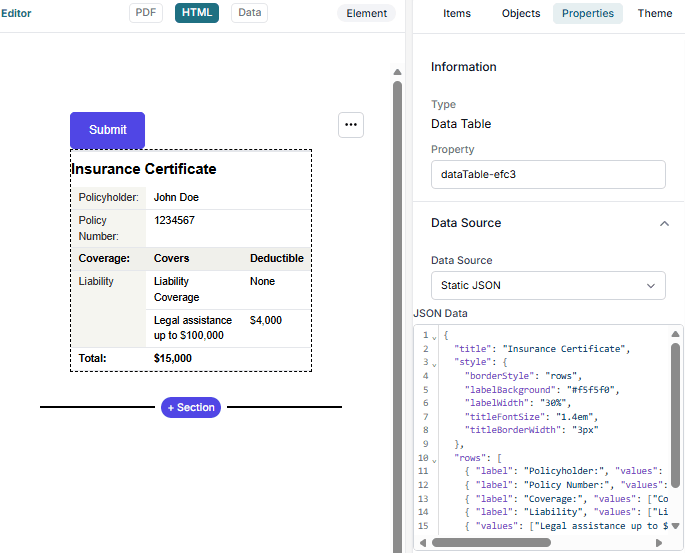
The Data Table element displays structured key-value data in a table format. It’s designed for documents like insurance certificates, financial summaries, and account overviews where data arrives from external systems (XML/JSON via API or webhook) and needs to be presented as styled tables.
Data Sources Static JSON — Enter JSON directly in the properties panel editor. Good for prototyping and fixed content.
Variable — Bind to a variable name populated at runtime via API/webhook. The element reads data from dataTableValues using the element’s property key or explicit variable name. This is the primary production use case.
Both can coexist: static JSON is the fallback, runtime variable data overrides when present.
JSON Schema
{
  "title": "Optional Table Title",
  "style": {
    "borderStyle": "full",
    "borderColor": "#e5e7eb",
    "fontSize": "14px",
    "fontFamily": "Arial, sans-serif",
    "cellPadding": "4px 10px",
    "titleFontSize": "1.4em",
    "titleFontWeight": "700",
    "titleBorderWidth": "3px",
    "labelBackground": "#f5f5f0",
    "labelColor": "#333",
    "labelWidth": "25%",
    "labelFontWeight": "normal",
    "valueAlignment": "left",
    "headerBackground": "#f0f0eb",
    "boldBackground": null
  },
  "rows": [
    {
      "label": "Row Label",
      "values": ["Value 1", "Value 2"],
      "bold": false,
      "header": false
    }
  ]
}
Automatic Layout Behaviors
RowSpan — When consecutive rows omit the label property, they are grouped under the previous labeled row. The label cell automatically spans all grouped rows.
ColSpan — The maximum number of value columns is determined across all rows. If a row has fewer values than the max, the last value cell spans the remaining columns.
Line breaks — Use \n in string values for line breaks.
Bullet lists — Use an array of strings as a value to render a bulleted list:
{
  "title": "Includes Example",
  "rows": [
    {
      "label": "Included Items",
      "values": [
        [
          "Item 1",
          "Item 2",
          "Item 3"
        ]
      ]
    },
    {
      "label": "Regular Value",
      "values": ["Normal row without list"]
    }
  ]
}
Example: Insurance Certificate
{
  "title": "Insurance Certificate",
  "style": {
    "borderStyle": "rows",
    "labelBackground": "#f5f5f0",
    "labelWidth": "30%",
    "titleFontSize": "1.4em",
    "titleBorderWidth": "3px"
  },
  "rows": [
    { "label": "Policyholder:", "values": ["John Doe"] },
    { "label": "Policy Number:", "values": ["1234567"] },
    { "label": "Coverage:", "values": ["Covers", "Deductible"], "header": true },
    { "label": "Liability", "values": ["Liability Coverage", "None"] },
    { "values": ["Legal assistance up to $100,000", "$4,000"] },
    { "label": "Total:", "values": ["$15,000"], "bold": true }
  ]
}
Example: Account Overview
{
  "title": "Account Overview",
  "style": {
    "borderStyle": "full",
    "labelWidth": "40%",
    "valueAlignment": "right"
  },
  "rows": [
    { "label": "Account Name", "values": ["Savings Account"], "header": true },
    { "label": "Account Number:", "values": ["1234.56.78901"] },
    { "label": "Balance:", "values": ["$150,000.00"], "bold": true }
  ]
}
Visual Example
The screenshot below shows how the JSON example renders inside the Smartform editor:
Date Picker
A datepicker will pick the date based on user keyboard input or selection from a calender.
| Item | Explaining |
|---|---|
| Property | This is the fieldname that identifies the field |
| Label | Label to show above or in front of the input line |
| Placeholder | This is a display value only that will show until a user has started to fill in text |
| Helper text | This is the help text associated with the field when doing a mouseover |
| Required field | An error message will show if the field is not filled in |
| Read Only | Not possible to enter values into the field |
| Prevent data insert | Prevent data to be inserted through an external API |
| Background | Background color for the input field. Default is white |
| Label top | If not clicked the label will show infront. Otherwise above the input field |
| Lines | Default number of lines that the text area shall contain |
| Rounded corners | Input box get rounded corners if checked |
| Border | color Color of borders for the input field. Default is black |
| Border | Select which sides of the text that should include borders and their thickness |
| Color | Text color. Default is black |
| Label Color | Text color for label |
| Label size | Text size for label |
Divider
A divider is a line that can split the page for you. It can often make it easier to read for the user if different areas are splitted with a divider
| Item | Explaining |
|---|---|
| Height | Height of the divider |
| width | You can limit the length of the divider. Default is 0 which means it will cover the full page |
| Color | Color of the divider |
Dropdown
A dropdown element is very efficient regarding space on the screen. You can define display values, variable names for items you would like to have in the dropdown.
| Item | Explaining |
|---|---|
| Property | This is the fieldname that identifies the field |
| Label | Label to show above or in front of the input line |
| Placeholder | This is a display value only that will show until a user has started to fill in text |
| Helper text | This is the help text associated with the field when doing a mouseover |
| Items | Here you can define the items in the dropdown include their values. You can choose to have the dropdown sorted alphabetically or you can sort it your self |
| Required Field | An error message will show if the field is not filled in |
| Read Only | Not possible to enter values into the field |
| Prevent data insert | Prevent data to be inserted through an external API |
| Background | Background color for the input field. Default is white |
| Label top | If not clicked the label will show infront. Otherwise above the input field |
| Hide label | Label is hidden when checked |
| Rounded corners | Input box get rounded corners if checked |
| Border color | Color of borders for the input field. Default is black |
| Border | Select which sides of the text that should include borders and their thickness |
| Color | Text color. Default is black |
| Dependencies | By adding a checkbox to the smartform, you can set that this checkbox has to be checked in order to see the input field |
| API retrieve | API defined in the API template on general level that will get the input field value upon change and then be able toretrun or update other fields in the smartform by useing their properties and setting their values |
| Label Color | Text color for label |
| Label size | Text size for label |
| Label width | Width for label. most relevant if label on top is not checked |
| Label Bold, Italic, Underline | Defining text style for the label |
| Input color | Small text to be placed at the end of the inputfield. Could for instance be “persons” |
| Input Size | Small text to show first in an input field. For instance ‘Number 1-10’ |
| Input width | The width of the dropdown box |
| Input Alignment | Aligning the text in the dropdown box |
| Input Bold, Italic, Underline | Defining text style for the label |
Dynamic Button
A button that performs a dynamic action depending on the chosen button type and configuration.
| Item | Explaining |
|---|---|
| Property | Property identifier for the Dynamic Button |
| Button Type | Defines the type of dynamic action (e.g. Submit Button) |
| Name | Text shown on the button |
| Message | Help text shown on mouseover |
| Background color | Background color of the button |
| Width / Rounded corners | Button width and corner style |
| Border color / Border | Border color and which sides have borders |
| Text Size / Style | Size and styling (bold, italic, underline) |
| Color | Text color |
File upload
This is a very useful feature when you would like user to be able to attach files to a smartform.
| Item | Explaining |
|---|---|
| Property | Property identifier for the file upload element |
| Text | Text to show in the file upload window |
| Helper text | Help that will show when the user makes a mouse over |
| Max size in mb | Maximum total size for files to be uploaded |
| Color | Text color |
| Size | Text size |
| Description | Description text that will show in the upload window |
| Required field | This field is required in order to submit the smartform |
| Read only | The user will not be able to change data |
| Prevent data insert | Will not allow API to insert data |
| Rounded corners | Make the corners rounded |
| Border color | Border color around the file upload element |
Headline
A headline is not much different from a normal text. Sizes, Bold, italic, colors etc. are the same. But you can tell that a text is H1, H2 or H3 which has an effect if you choose that the smartform shall include a table of content. To turn the table of content on you need to go to the the Theme menu for the Smartform and select Type is Standard w/table
| Item | Explaining |
|---|---|
| Property | This is the fieldname that identifies the field |
| Value | This is the value of the field |
| Helper text | This is the help text associated with the field when doing a mouseover |
| Color | Text color. Default is black |
| Size | Text size |
| Alignment | Aligning the text to the right, middle or left |
| Bold | Make the text bold |
| Italic | Make the text Italic |
| Underline | Make the text underline |
| Header type | Tell if the Header is H1, H2 or H3. This will affect their default properties and how they will be displayed in a table of content |
HTML
The HTML element lets you insert custom HTML code directly into the Smartform. This allows full control of layout, formatting, styling or embedding external content.
| Item | Explaining |
|---|---|
| Type | Shows that this element is of type HTML |
| Property | Property identifier for the HTML element |
| Value | Area where you write or paste the HTML code to display in the Smartform |
| Helper text | Help text that will show when doing a mouseover |
| PDF Settings | Options for how the HTML content should appear in PDF export |
How to use HTML
Overview
The HTML element is used to add custom content that requires more flexibility than standard Smartform elements.
Typical use cases include:
- Custom text layouts
- Branded information boxes
- Columns or structured content
- Highlight sections
- Simple decorative elements
How to add HTML
- Drag the HTML element into the Smartform
- Open the Value field
- Paste or write your HTML code
- Save the form and preview the result
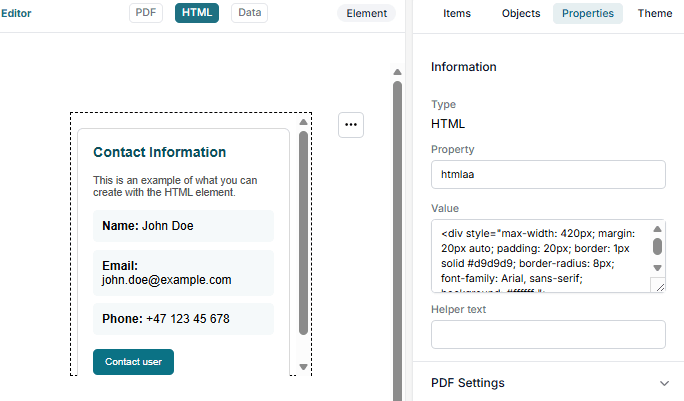
Example
This simple HTML block creates a styled info box:
<<div style="max-width: 420px; margin: 20px auto; padding: 20px; border: 1px solid #d9d9d9; border-radius: 8px; font-family: Arial, sans-serif; background: #ffffff;">
  <h3 style="margin-top: 0; color: #0b4f5c;">Contact Information</h3>
  <p style="color: #555; font-size: 14px;">
    This is an example of what you can create with the HTML element.
  </p>

  <div style="margin-top: 16px; padding: 12px; background: #f5f9fa; border-radius: 6px;">
    <strong>Name:</strong> John Doe
  </div>

  <div style="margin-top: 10px; padding: 12px; background: #f5f9fa; border-radius: 6px;">
    <strong>Email:</strong> john.doe@example.com
  </div>

  <div style="margin-top: 10px; padding: 12px; background: #f5f9fa; border-radius: 6px;">
    <strong>Phone:</strong> +47 123 45 678
  </div>

  <button style="margin-top: 18px; padding: 10px 16px; background: #0b7285; color: white; border: none; border-radius: 6px; cursor: pointer;">
    Contact user
  </button>
</div>
Visual Example
The screenshot below shows how the HTML example renders inside the Smartform editor:
Hyperlink
This control gives the designer the possibility to navigate to other references etc. that can be defined through an URL. It is possible to have a hyperlink as pure text or as a button.
| Item | Explaining |
|---|---|
| Property | This is the fieldname that identifies the field |
| Text | Text that will show in the form for the link. Example: “Click here to open link” |
| Helper text | This is the help text associated with the field when doing a mouseover |
| URL | The URL to open by clicking the link. Example: www.google.com |
| Show hyperlink as button | This will show the hyperlink as a button and also open up button properties |
| Border | Select which sides of the text that should include borders and their thickness |
| Color | Text color. Default is black |
| Size | Text size |
| Alignment | Aligning the text to the right, middle or left |
| Bold | Make the text bold |
| Italic | Make the text Italic |
| Underline | Make the text underline |
| Button Background color | Possible to select Button color if the option to show the link as button is ticked off |
| width | The width of the button. 140 would be a good size |
| Rounded corner | Button will get rounded corners |
| Border color | Define colors for a border around the button |
| Border | Define border size around the button |
Input area
An input area opens an input space where the same formatting for all input is used. You can define number of rows as default. Otherwise a text area will expand as the user starts filling in more and more information.
| Item | Explaining |
|---|---|
| Property | This is the fieldname that identifies the field |
| Label | Label to show above or in front of the input line |
| Placeholder | This is a display value only that will show until a user has started to fill in text. A typical value could be |
| Initial value | This is a initial value when the smartform is created. Could be used when for instance the value is most likely to be a certain value. |
| Helper text | This is the help text associated with the field when doing a mouseover |
| Required field | An error message will show if the field is not filled in. |
| Read Only | Not possible to enter values into the field. |
| Prevent data insert | Prevent data to be inserted through an external API. |
| Background | Background color for the input field. Default is white. |
| Label top | If not clicked the label will show in front. Otherwise above the input field |
| Lines | Default number of lines that the text area shall contain. |
| Hide label | Label is hidden when checked |
| Rounded corners | Input box get rounded corners if checked |
| Border color | Color of borders for the input field. Default is black |
| Border | Select which sides of the text that should include borders and their thickness. |
| Color | Text color. Default is black |
| Dependencies | By adding a checkbox to the smartform, you can set that this checkbox has to be checked in order to see the input field |
| API retrieve | API defined in the API template on general level that will get the input field value upon change and then be able toretrun or update other fields in the smartform by useing their properties and setting their values. |
| Label color | Text color for label |
| Label size | Text size for label |
| Label alignment | Left, Center or right alignment of the label |
| Label Bold, Italic, Underline | Defining text style for the label |
Input line
A input line is a control for allowing user for input as text. The input line has however several options for controls and lookups.
| Item | Explaining |
|---|---|
| Property | This is the fieldname that identifies the field |
| Label | Label to show above or in front of the input line |
| Placeholder | This is a display value only that will show until a user has started to fill in text. A typical value could be |
| Initial value | This is a initial value when the smartform is created. Could be used when for instance the value is most likely to be a certain value |
| Helper text | This is the help text associated with the field when doing a mouseover |
| Validate data | There are certain built in qualifiers of a field that will evaluate that the value is filled in according to the validation rule |
| Custom validation error message | A custom defined message if the value entered is not according to the validation rule |
| Required field | An error message will show if the field is not filled in |
| Read Only | Not possible to enter values into the field |
| Prevent data insert | Prevent data to be inserted through an external API |
| Background | Background color for the input field. Default is white |
| Label top | If not clicked the label will show in front. Otherwise above the input field |
| Hide label | Label is hidden when checked |
| Rounded corners | Input box get rounded corners if checked |
| Border color | Color of borders for the input field. Default is black |
| Border | Select which sides of the text that should include borders and their thickness |
| Color | Text color. Default is black |
| Dependencies | By adding a checkbox to the smartform, you can set that this checkbox has to be checked in order to see the input field |
| API retrieve | API defined in the API template on general level that will get the input field value upon change and then be able to return or update other fields in the smartform by using their properties and setting their values |
| Workflow Retrieve | A change in this value will cause the selected workflow to be triggered that again would be able to make API lookups and put new values back into the smartform |
| Label Color | Text color for label |
| Label size | Text size for label |
| Label width | Width for label. most relevant if label on top is not checked |
| Label alignment | Left, Center or right alignment of the label |
| Label Bold, Italic, Underline | Defining text style for the label |
| Suffix | Small text to be placed at the end of the input field. Could for instance be “persons” |
| Prefix | Small text to show first in an input field. For instance ‘Number 1-10’ |
Map
This feature adds a map with a dropdown for choosing locations. The locations can be filled from API.
| Item | Explaining |
|---|---|
| Property | Property identifier for the element |
| Label | Choose a label for the form |
| Api Retrieve | Retrieve map locations (coordinates) from API |
| Hide dropdown | Hide the dropdown |
| Color | Text color |
| Width | Text size |
| Bold | Make the text bold |
| Italic | Make the text Italic |
| Underline | Make the text underline |
How to use Map
Purpose
The Map element is used when you want to show locations retrieved from an API.
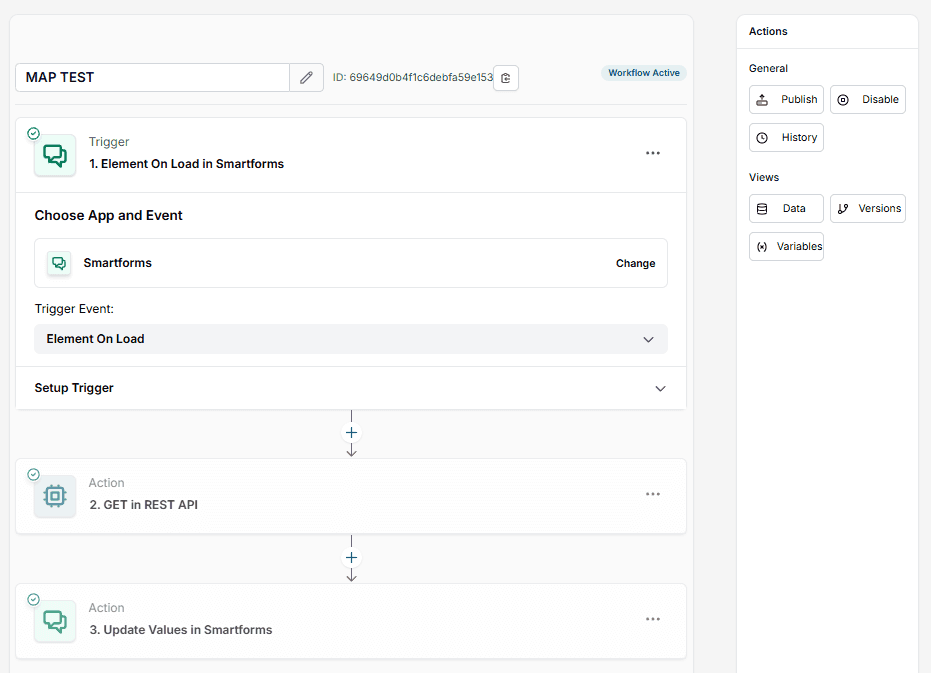
To display locations inside the map, you must first set up a workflow that calls an API and then updates the Smartform with the data.
Step 1: Create a Workflow
- Go to Workflow in Smartforms Studio
- Click New Workflow
- Choose trigger:
- Trigger event:
Element on load - Set up trigger: Select the Smartform that contains your Map element
- Trigger event:
This makes sure the workflow runs automatically when the user opens the form.
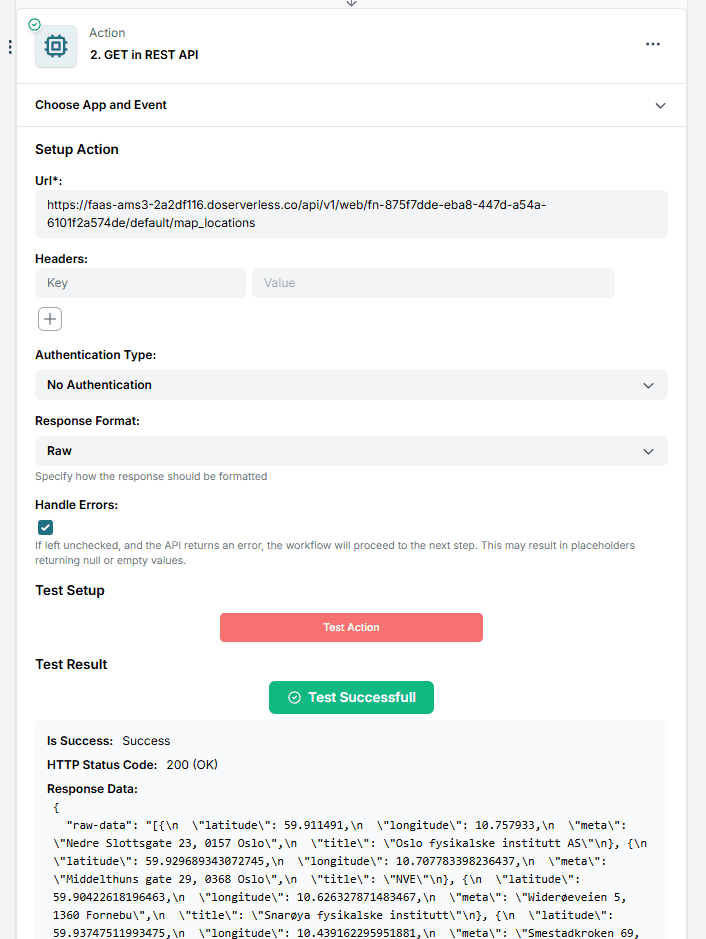
Step 2: REST API call
- Add a new Action
- Choose REST API
- Action event:
GET - In Set up action, paste the API URL that returns map locations
Example:
https://faas-ams3-2a2df116.doserverless.co/api/v1/web/fn-875f7dde-eba8-447d-a54a-6101f2a574de/default/map_locations - Under response format, select Raw data (not Flattened)
- Click Test action
- You will now see the API response in the test window
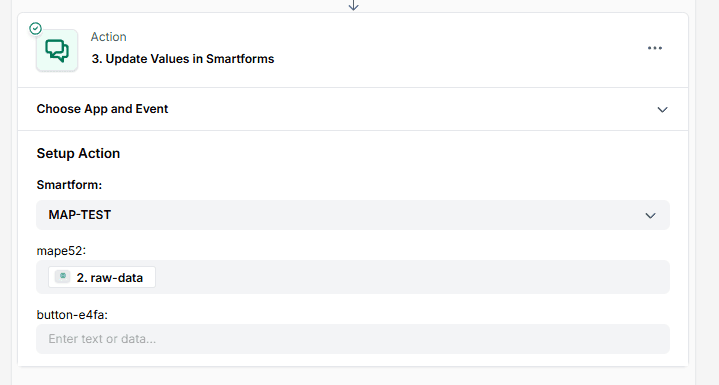
Step 3: Update Smartform with the API data
- Add a new Action
- Choose Update values in Smartform
- Action event:
Update - In Set up action:
- Choose the same Smartform
- The Map element will appear in the list
- Paste the raw data from the previous test into the Map field
Now the workflow knows how to insert the API data into the map.
Step 4: Publish the workflow
- Click Publish in the top right corner
- Activate the workflow
This makes sure the workflow is ready and connected.
Step 5: Connect workflow to Map in the Smartform
- Go back to the Smartform
- Click on the Map element
- Open the Integration tab
- Under Workflow, choose the workflow you created
Example: Load map with data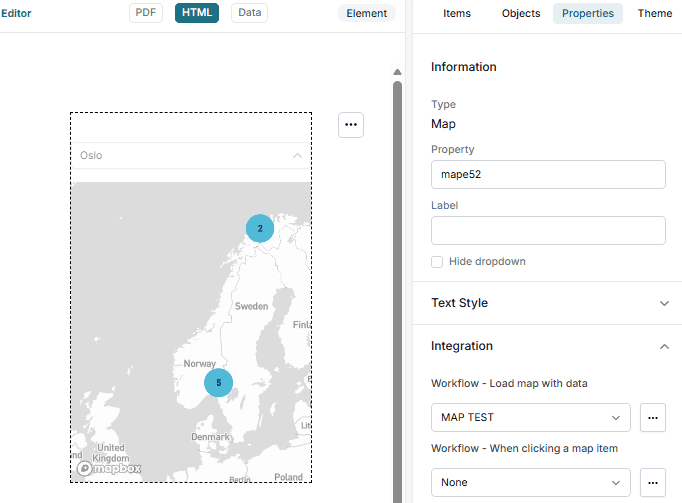
Result
When a user opens the Smartform:
- The workflow runs automatically
- The API is called
- Locations are retrieved
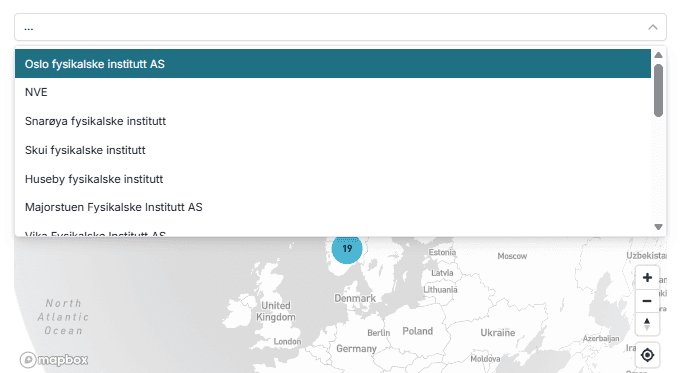
- The Map element displays these locations in a dropdown and on the map
The user can now select a location that was retrieved from your API.
Matrix
The Matrix displays data in a customizable table format, enabling organized data entry, reporting, and interaction.
| Item | Explaining |
|---|---|
| Property | Property identifier for the element |
| Items | Edit the items |
| Required field | Participants need to fill this element out |
| Read only | Participants can only read this element, not enter data or enter. |
| Show row number | Show the row number on rows |
| Workflow Retrieve | Retrieve values from Workflow |
| Color | Text color |
| Size | Text size |
| Bold | Make the text bold |
| Italic | Make the text italic |
| Underline | Make the text underline |
Order Table
An order table is a special constructed element for creating an order table with all the properties connected.
| Item | Explaining |
|---|---|
| Property | This is the fieldname that identifies the field |
| Columns | Definition of columns in the order table. ( like Item, product number, quantity, price per unit etc. ) |
| Items | Default values into the table |
| Add sum row | Decide if a sum row should show or not |
| Sum | default value for Sum. |
| Add discount | Discount row will be added |
| Discount | Default value for discount |
| Add VAT row | VAT row will be added to the table as a summarized VAT |
| VAT | Default VAT value |
| Border | Select which sides of the text that should include borders and their thickness. |
| Header Color | Text color for table header |
| Header size | Text size for table header |
| Label Bold, Italic, Underline | Defining text style for the table header |
| Item Color | Text color for items in order table |
| Item size | Text size for items in the order table |
QR Code
The QR Code element generates a scannable QR code based on a text value, URL or variable added in the Smartform.
| Item | Explaining |
|---|---|
| Property | Property identifier for the QR Code element |
| Value | The text, URL or variable used to generate the QR code |
| Hide until variables have values | Hide the QR code until required values are present |
| Size | Size of the QR code in pixels |
| Foreground / Background Color | Colors used for the QR code and its background |
| Alignment | Align the QR code to the left, center or right |
| PDF Settings | Defines how the QR code is displayed in PDF export |
How to use QR Code
Purpose
The QR Code element generates a scannable code based on a value you enter.
You can use static text, a normal URL, or dynamic variables from the Smartform.
How to use
- Add the QR Code element to your Smartform
- Open the Value field
- Enter the text or URL you want the QR code to point to
- The QR code is generated automatically
You can use it for:
- Linking to a website
- Showing product info
- Opening a portal page
- Quick access to external systems
Simple Example
To create a QR code that opens a website, enter an URL.
When the user scans the QR code, they will be taken directly to the page.
Dynamic Example
You can also let the QR code change based on what the user types into the Smartform.
In this example, the QR code will search Wikipedia for the user’s first name + last name.
Important:
The input fields must use the same Property names as the variables you use inside the QR Code.
Example: If your QR Code uses FirstName and LastName, the input fields must have Property = FirstName and Property = LastName.
Otherwise the QR Code will not update correctly.
Enter this in the Value field:
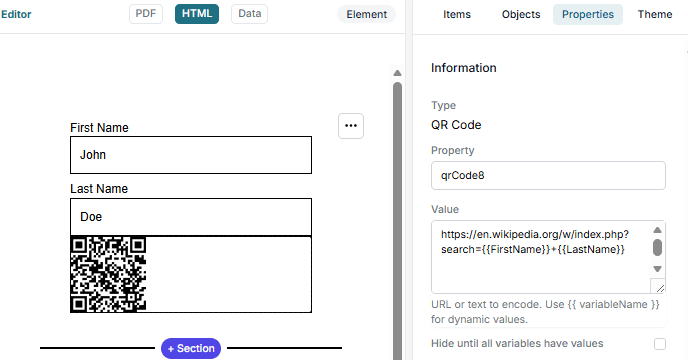
When the user fills in:
- First Name: John
- Last Name: Doe
The QR code will point to John Doe’s Wikipedia page.
This is useful for generating dynamic lookups, profile links, or search URLs.
Radio button
A radio button is very user friendly and can control a lot of the dynamics in a smartform.
| Item | Explaining |
|---|---|
| Property | This is the fieldname that identifies the field. Use the same name for the other radio buttons you would like to work together. If you got three radio buttons with choices, they should have the same property name but different values |
| Label | Label in front of the radio button |
| Helper text | This is the help text associated with the field when doing a mouseover |
| Connected elements | Items depending that will show if the radio button is checked |
| Color | Text color. Default is black |
| Alignment | Alignment of the radio button within the space it is positioned |
| Size | Text size for label |
| Bold, Italic, Underline | Define the style for label |
Radio List
A radio button is very user friendly and can control a lot of the dynamics in a smartform.
| Item | Explaining |
|---|---|
| Property | Identifier for the Radio List element |
| Label / Helper text | Label shown above the list and optional help text |
| Items | Edit and manage the selectable radio options |
| Required / Read only / Prevent data insert | Field rules for validation and restrictions |
| Border color / Border / Rounded corners | Visual border and corner settings |
| Hide label | Option to hide the label |
| Label Style | Description size and styling |
| Color | Description text color |
Resource
A resource is a link to an element that is stored in the resource menu under template. It is recomeneded to use this element instead of a bitmap. A bitmap will be included into the smartform while a resource is an external link to a bitmap in the resource repository. Using resources will improve performance for a smartform.
| Item | Explaining |
|---|---|
| Property | Property identifier for rich text element |
| Resource | Resource in the resource library |
| Size | Pixel size in the smartform |
| Rounded corners | If the element shall have rounded corners or not |
| Border color | Color for border |
| Border | Border thickness and positions |
| Alignment | Left, center or right alignment in the area where resource element is placed |
Rich text
A smartform can include a rich text editor to get more design into the text you would like to add.
| Item | Explaining |
|---|---|
| Property | Property identifier for rich text element |
| Height | Height of rich text field. Default is 300 |
| Width | Width of rich text field. Default is 500 |
| Enable for user input | User can write text into the smartform when this option is enabled |
Signature
This is famous mouse signature for people to sign a document by using their finger or mouse.
| Item | Explaining |
|---|---|
| Property | Property identifier for the signature field |
| Label | Label in above the signature field |
| Helper text | This is the help text associated with the field when doing a mouseover |
| Name | Name of person that will sign. Here it is smart thing to use variables the will fill out this automatically. Like this {{ name }}. See the section in this document about variables. |
| Required field | Decide if the field is required to fill out or not. |
| Read Only | Decide if this is a read only field or not. |
| Color | Text color. Default is black |
| Size | Text size for label |
| Element height | Hight of signature field. Default is 152 |
| Border color | Color of border around the signature field |
| Border | Size of the border |
Smart Table
A smart table is an element that needs a smarttable object. This is a pre requisite. You can create the smart object from the Template menu.
| Item | Explaining |
|---|---|
| Property | This is the fieldname that identifies the field |
| Connect Smart Object | Available smart object definitions that can be connected to the smart table |
| Heading | Header of smart table |
| Description | Description following after the header |
| Max rows | Maximum number of rows a user can add to the smart table |
| Show row numbers | Show row number in the first column |
| Border color | Border color for smartform |
| Border | Border size and locations |
| Columns | You can restrict which columns should show in a smart table or not. If the smart object got 10 columns it might be smart to only show the 5 most important ones in the table |
| Header Color | Text color for table header |
| Header size | Text size for table header |
| Body color | Text color for the cell values |
| Body size | Text size for the cell values |
| Stripes rows | Make every second row have a different background color |
| Stripes odd | Color for every odd row |
| Strips Even | Color for every even row |
| Button label | Text to show on the “Add Item” button |
| Text color | Text color for button |
| Button background | Background color for the button |
How to use Smart Table
Purpose
A Smart Table is used when you want the user to add, edit, or remove rows of data when filling out the Smartform.
To make this work, the Smart Table must be connected to a Smart Object.
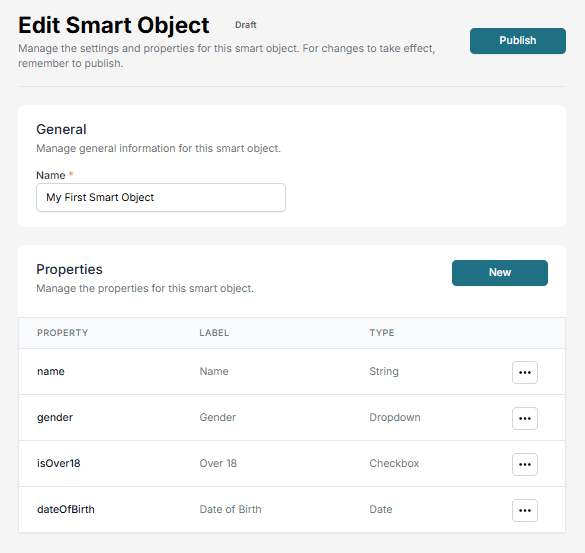
How to create a Smart Object
- Go to the Templates tab in Smartforms Studio.
- Select Smart Object in the left menu.
- Click New Object.
- Give the Smart Object a name.
- Add the fields (properties) the table should contain — for example:
- Product
- Quantity
- Price
- Comment
- When finished, click Publish (top right).
- The Smart Object will now appear in the Smart Object list.
Connect Smart Object to the Smart Table
- Go back to your Smartform.
- Find your Smart Table element.
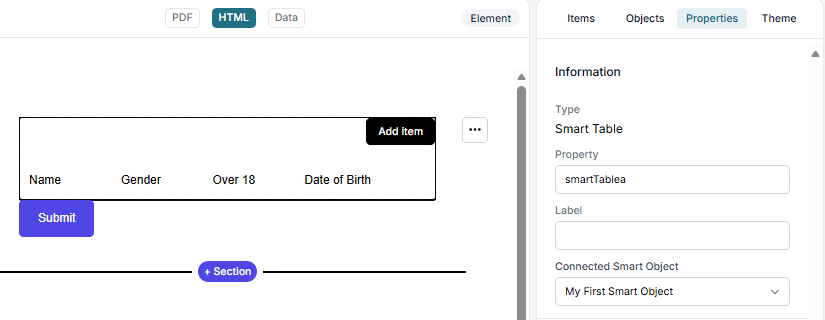
- Open the dropdown called Connected Smart Object.
- Select the Smart Object you just created.
- The Smart Table will now use the fields from the Smart Object.
The user will now be able to:
- Add rows
- Fill out the fields
- Delete rows
- Submit the data back to the system
Example
A Smart Object with the type:
- String
- Dropdown
- Checkbox
- Date
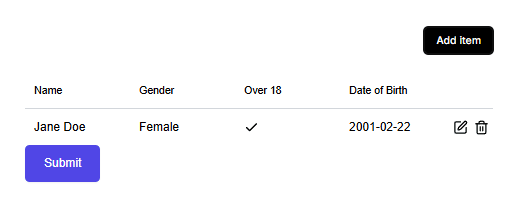
…will result in a Smart Table where the user sees:
| Enter your name: | Where do you live? | Are you over 18? | Date of Birth: |
|---|---|---|---|
| [String] | [Dropdown] | [Checkbox] | [ Datepicker] |
And the user can press Add Item to insert rows.
Visual Example
Spacer
A spacer is used to create space in between elements. The spacer is transparent and the only thing it does is to take up space.
| Item | Explaining |
|---|---|
| Height | Height of the spacer |
| Width | Width of the spacer |
Static Table
A static table used to display predefined rows and columns of data.
| Item | Explaining |
|---|---|
| Property | Unique property identifier for the element |
| Data Source | Select whether the table uses Static Data or a Variable |
| Edit Columns | Define table columns and map column keys |
| Edit Data | Add and manage rows (available when using Static Data) |
| Variable Name | Name of the datatable variable (required when using Variable) |
| Use First Row as Headers | Uses first row values as column headers (Variable mode only) |
| Table Width | Defines the width of the table |
| Hide Header Row | Hides the header row |
| Hide Footer | Hides the footer row |
| Show Borders | Displays table borders |
| Border Color | Defines border color |
| Border Width | Defines border thickness |
| Rounded Corners | Applies rounded corners to the table |
| Striped Rows | Enables alternating row background colors |
| Odd Row Color | Background color for odd rows |
| Even Row Color | Background color for even rows |
How to use Static Table
Purpose
The Static Table element displays structured, tabular data in a Smartform.
- Read-only (end-users cannot edit values)
- Used for presenting static or dynamic data
- Supports manual configuration or variable-based population
Data Source Options
Static Data (Manual)
Use when table content is predefined.
Configuration:
- Select the element.
- Set Data Source to
Static Data. - Click Edit Columns to define columns.
- Click Edit Data to add rows.
Suitable for fixed informational tables.
Variable (Dynamic)
Use when data is provided via:
- API (Smartform creation)
- Workflow
- Dataset (testing)
Variable Requirements:
- Must be a datatable value (array of objects).
- Each object represents one row.
- Object keys must match configured column keys.
Example:
{
  "dataTableValue": {
    "orderLines": [
      {
        "productName": "Laptop Pro 14\"",
        "quantity": "2",
        "unitPrice": "1500"
      },
      {
        "productName": "Wireless Mouse",
        "quantity": "5",
        "unitPrice": "25"
      }
    ]
  }
}
Tip:
You can enable Use First Row as Headers to automatically use the first row values as column headers.
When enabled, the first row will not be displayed as data.
Submit Button
This button will close the smartform for more editing and pass it back to the system for further actions.
| Item | Explaining |
|---|---|
| Property | Property identifier for button |
| Name | Text to show on button |
| Message | A message to show after button ha been pressed. Like “Thank you for filling out the form. We will soon contact you” |
| Helper text | A help text will show when you do a mouseover |
| Background color | Button background color. Default is black |
| Width | Button width |
| Rounded corners | Give button rounded corners |
| Border color | Color of border around the button |
| Border | Size of the border |
| Text color | Color of button text |
| Text size | Size of text showing on button |
| Alignment | Aligning the button in the cell where it has been placed. Can be aligned to the left, center or to the right |
Switch
A switch is an alternative to a checkbox in order to select or deselect an alternative
| Item | Explaining |
|---|---|
| Property | This is the fieldname that identifies the field |
| Label | Label to show above or in front of the input line |
| Helper text | This is the help text associated with the field when doing a mouseover |
| Read Only | Not possible to enter values into the field |
| Prevent data insert | Prevent data to be inserted through an external API |
| Default state | Decide if default state of the check box should be checked or not |
| Color | Text color. Default is black |
| Label Color | Text color for label |
| Alignment | Align the switch to left, center or right in the cell |
| Label size | Text size for label |
| Bold, Italic, Underline | Define the style for label and descriptions |
TOC
The Table of Contents (TOC) element automatically generates an overview of the document structure based on headline elements (H1–H6). It is primarily used in the PDF layout to improve navigation in longer or structured documents.
| Item | Explaining |
|---|---|
| Type | Defines the element as a Table of Contents |
| Title | The visible title displayed above the table of contents in the document |
| Information | Optional descriptive text related to the TOC element |
| Property | Unique field name used to identify the element internally |
| Include levels | Defines which headline levels (H1–H6) should be included in the table of contents |
Text
A text is text to show in a smartform without any user interaction other than reading the text. You cannot define individual part of a text to be bold, italic etc. The whole text value will use the properties as selected. If it is important to include different text layouts within the same element you should use the rich text element instead.
| Item | Explaining |
|---|---|
| Property | This is the fieldname that identifies the field |
| Value | This is the value of the field |
| Helper text | This is the help text associated with the field when doing a mouseover |
| Rounded corner | If borders are used you can also tell that the borders should have rounded corners |
| Border color | Color of the border |
| Border | Select which sides of the text that should include borders and their thickness |
| Color | Text color. Default is black |
| Size | Text size |
| Alignment | Aligning the text to the right, middle or left |
| Bold | Make the text bold |
| Italic | Make the text Italic |
| Underline | Make the text underline |
| Icon | Show a selected icon in front of the text |
Time Picker
A time picker will pick the time in hours, minutes and seconds. You can choose between 12 or 24 hour display of values.
| Item | Explaining |
|---|---|
| Property | This is the fieldname that identifies the field |
| Label | Label to show above or in front of the input line |
| Placeholder | This is a display value only that will show until a user has started to fill in text |
| Helper text | This is the help text associated with the field when doing a mouseover |
| Required field | An error message will show if the field is not filled in |
| Read Only | Not possible to enter values into the field |
| Prevent data insert | Prevent data to be inserted through an external API |
| Background | Background color for the input field. Default is white |
| Label top | If not clicked the label will show infront. Otherwise above the input field |
| Lines | Default number of lines that the text area shall contain |
| Rounded corners | Input box get rounded corners if checked |
| Border color | Color of borders for the input field. Default is black |
| Border | Select which sides of the text that should include borders and their thickness |
| Color | Text color. Default is black |
| Label Color | Text color for label |
| Label size | Text size for label |
Video
This feature will add a video to be embedded into the smartform. We got special support for YouTube and Vimeo videos.
| Item | Explaining |
|---|---|
| Property | Property identifier for the bitmap element |
| URL/Video ID | A video will be specified by a URL for YouTube or any stream server. Vimeo videos has a build in player in smartforms and you will only have to enter the Vimeo ID (Not the full URL) |
| Autoplay | Start playing as soon as the smartform runs |
| Continuous play | When reaching the end of the video it will start from the beginning again |
| Width | Width of video window |
| Height | Height of video window |
| Rounded corners | Show video window with rounded corners |
| Border color | Border color around the video |
| Border | Border size and which sides of the video window that should have borders |
| Alignment | Define if you would like to align the bitmap to the left, in center or to the right in the cell where you placed it |