Groups
The Groups page allows you to organize your text elements into logical categories.
Groups make it easier to manage, search, and find relevant content when working in the Text Library and the Editor.
A group is required when creating a text element.
Purpose of Groups
Groups help you:
- Organize text elements into meaningful categories
- Improve search and navigation in the Text Library
- Quickly locate the correct text when editing
- Keep your library structured as it grows
Examples of useful groups include:
- Headers
- Footers
- Legal Texts
- Templates
- Descriptions
- System Sections
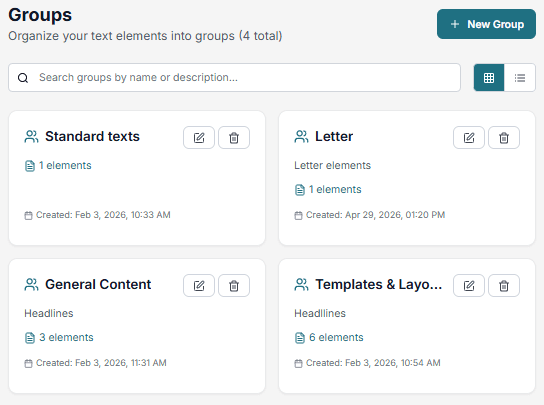
Groups Page Overview
Search
Use the search field to find groups by name or description.
Group List
Each group is displayed with:
- Group name
- Description (optional)
- Number of text elements
- Created/updated timestamps
Available actions:
- Edit – Update name or description
- Delete – Remove the group (text elements are not deleted)
View Modes
Switch between:
- Grid view
- List view
Create a Group
- Click + New Group
- Enter a Group Name (required)
- (Optional) Add a Description
- Click Create Group
💡 Use descriptions to clarify the purpose, especially in shared environments.
Edit a Group
- Click Edit on a group
- Update the name or description
- Save changes
Editing a group does not affect existing text elements.
Delete a Group
- Click Delete on a group
- Confirm the action
Deleting a group:
- Does not delete text elements
- Removes the grouping from those elements
Assign Groups to Text Elements
Groups are selected when creating or editing a text element.
- Open a text element
- Select a group from the Group dropdown
- Save changes
A text element can belong to one group at a time.
Best Practices
- Use short and descriptive names
- Keep naming consistent
- Avoid too many small groups
- Use descriptions for clarity
- Review and clean up unused groups regularly
Related
- Text Library
- Create Text Element
- Styles
- Table Styles
- Colors