Records
The Records tab lists all Smartforms that have been created, including their status, creator, and other key details.
From here, you can view, download, and export form data in different formats.
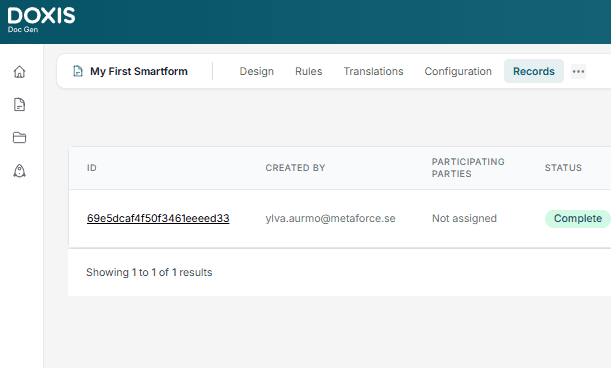
Overview Table
Each row in the table represents a Smartform record with the following columns:
- ID – The unique identifier for the form instance.
Click the ID to open a preview of that record, showing the submitted data. - Created By – The email address of the user who created the form.
- Participating Parties – The parties assigned to this form (if any).
- Status – The current status of the form, e.g.:
- In progress – The form is still being filled out or awaiting completion.
- Completed – The form has been submitted and the process is finished.
- Last Updated – The date and time the record was last modified.
- Webhook Payload – Allows you to view the form data in specific formats:
- JSON – Raw data in JSON format.
Useful if you want to see exactly how the data looks for a completed and filled-out form, or for troubleshooting issues. - Interact – A format for integration with Interact-compatible systems.
- JSON – Raw data in JSON format.
- Viewpoint – Allows you to download a PDF copy of the form.
Actions
Export Data
- In the Webhook Payload column, use the Select format dropdown.
- Choose JSON or Interact.
- The file will be generated in the selected format.
Download PDF
- Click Download PDF in the Viewpoint column to save a PDF version of the form.
Use Cases
- Auditing – Check which forms are in progress or completed.
- Data Export – Export raw form data for analysis or integration.
- Archiving – Save completed forms as PDFs for compliance or record-keeping.
- Data Preview – Click a record’s ID to quickly view its submitted data without downloading.
- Troubleshooting – Inspect a record’s JSON to debug issues, verify data mapping, or confirm correct form completion.