Table Styles
The Table Styles page allows you to create and manage reusable table templates for use in the Text Library and the Editor.
These styles define the structure and appearance of tables, ensuring consistency across documents.
Table styles are useful for structured content such as pricing tables, data overviews, and multi-column layouts.
Purpose of Table Styles
Table Styles help you:
- Maintain consistent table formatting
- Predefine rows, columns, and headers
- Control table and column widths
- Apply consistent colors and borders
- Standardize text formatting in tables
- Save time when creating tables
Table Styles Overview
The table style list shows:
- Name
- Description
- Preview
- Created/updated information
Available actions:
- Edit – Modify a style
- Delete – Remove a style from future use
Click + New Table Style to create a new style.
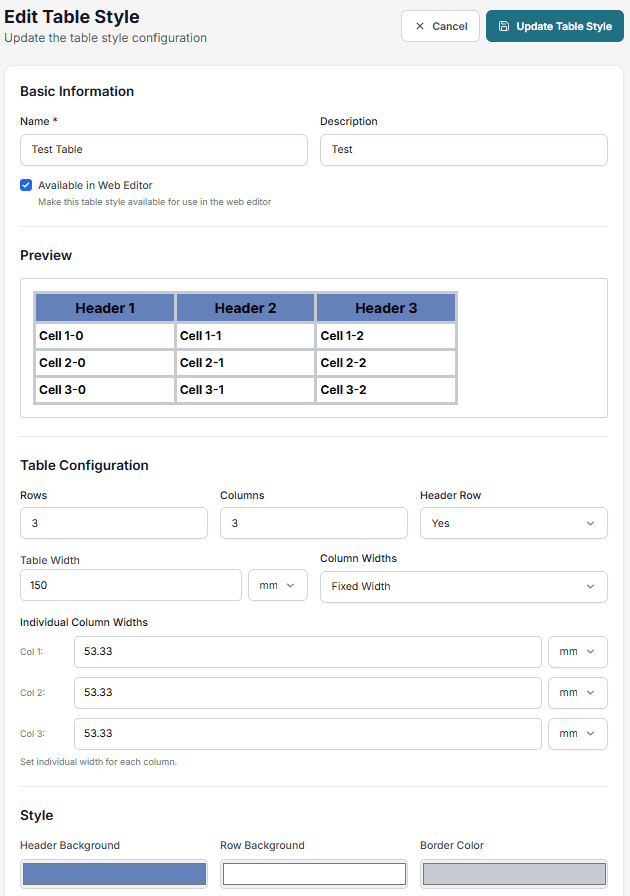
Create a Table Style
Basic settings
- Name (required) – Use descriptive names like Pricing Table or 3-Column Layout
- Description (required) – Explain the purpose of the style
- Available in Web Editor – Enable if the style should be usable in the Editor
Table configuration
Rows and columns
Define the default number of rows and columns.
Header row
Choose whether the table includes a header row.
Table width
Set the table width (e.g., in mm).
Column widths
- Fixed width – Set exact widths for columns
Styling
Background colors
Define colors for:
- Header background
- Row background
- Borders
Borders
Set borders for header and body cells.
You can control each side directly in the preview.
Text styles
Header text
Define:
- Text color
- Font size
- Font weight
Body text
Define:
- Text color
- Font size
- Font weight
Preview
A live preview updates as you configure the style, showing exactly how the table will look.
Edit or delete
- Edit – Update settings and save
- Delete – Remove the style from future use
Changes apply to new tables only and do not affect existing ones.
Best practices
- Use clear and descriptive names
- Keep header styling distinct
- Use consistent borders across styles
- Test styles with real content before using them
Related
- Text Library
- Styles
- Groups
- Colors
- Using Table Styles in the Editor