The PDF tab lets you control how your Smartform looks when it is exported as a PDF document.
Here you can configure layout, margins, headers, footers, page numbering, and table of contents.
These settings are useful when your Smartform is used to create formal documents such as contracts, reports, or letters.
Open the PDF tab
- Go to the Design tab
- Select PDF in the left panel
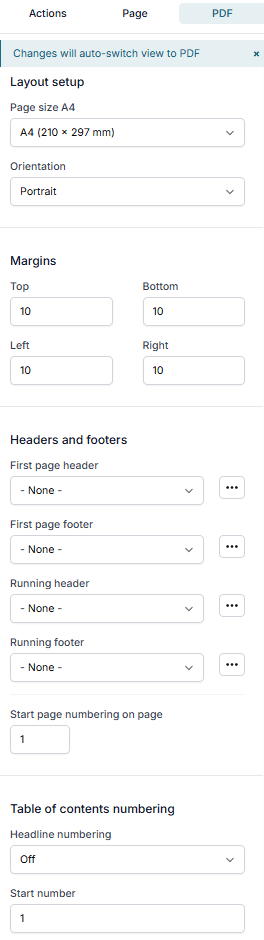
Layout setup
Page size
Choose the page format for the PDF.
- Default: A4 (210 × 297 mm)
- Supported sizes may include:
- A4
- A5
- Letter
- Legal
Orientation
Choose how the page is displayed:
- Portrait – Vertical layout (default)
- Landscape – Horizontal layout
Margins
Margins define the space around the content.
You can set margins individually (in millimeters):
- Top
- Bottom
- Left
- Right
Example:
If all margins are set to 10, the content will have equal spacing on all sides.
Headers and footers
Headers and footers are sections shown at the top or bottom of each page.
They can include:
- Logos
- Titles
- Dates
- Page numbers
- Any Smartform content
Header and footer types
You can define different headers and footers:
- First page header – Only on the first page
- First page footer – Only on the first page
- Running header – On all pages after the first
- Running footer – On all pages after the first
Each option is selected from a dropdown.
Create a header or footer
- Click the ••• button next to a dropdown
- Select Create
- Design the layout using Smartform elements
- Save the section
After saving, it will be available in the dropdown.
Manage existing layouts
From the ••• menu:
- Edit – Modify an existing header or footer
- Refresh – Update the list if changes were made elsewhere
Page numbering
Start on page
Choose which number the document should start with.
- Default: 1
This is useful if the PDF is part of a larger document.
Table of contents
The Table of Contents (TOC) automatically creates an overview of the document structure with page numbers.
This helps users navigate longer or structured documents.
Table of contents numbering
You can control how the TOC is numbered:
-
Headline numbering
- On / Off
-
Start number
- Default:
1
- Default:
Typical usage
Use the PDF tab when:
- Creating printable documents
- Generating contracts or reports
- Ensuring consistent layout and branding
Tips
- Use headers and footers for branding and structure
- Keep margins consistent for readability
- Use TOC for long or structured documents