Table Tab
The Table tab lets you manage your workflow tables. Tables are used to store and structure custom data that can be used within workflows.
Viewing and Managing Tables
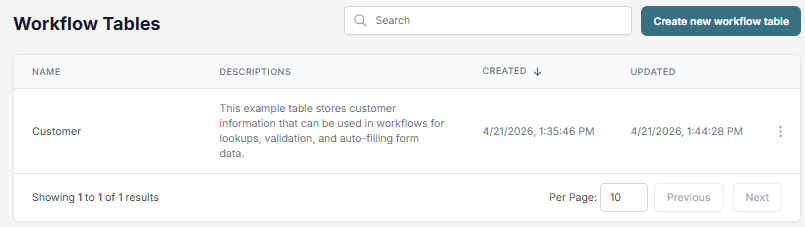
When you open the Table tab, you’ll see a list of all your created tables. From this view, you can:
- Edit a table’s structure
- View data inside a table
- Delete a table
- Create a new workflow table
View Table:
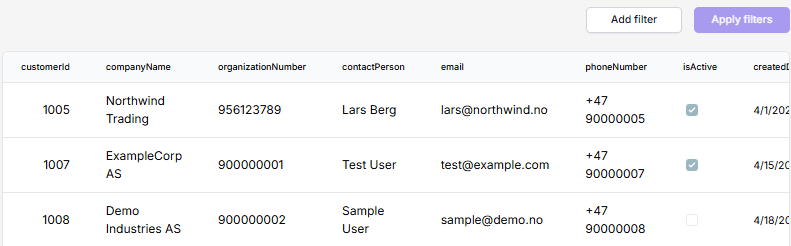
View Data:
⚠️ Note
Table data visibility can be configured. It is possible to hide or mask sensitive data, meaning that certain values may not be visible to users depending on access settings or configuration.
Creating a New Table
To create a new table:
- Click the Create New Workflow table button.
- Give your table a name.
- Once created, you can start adding table fields to define the structure of your data.
Adding Table Fields
After creating a table, you can define its structure by adding fields. Each field represents a column in your table.
When adding a new field, you must:
- Enter a field name (this is required).
- Choose the data type, from the following options:
StringIntegerDoubleBooleanDate
- (Optional) Mark the field as searchable (unencrypted).
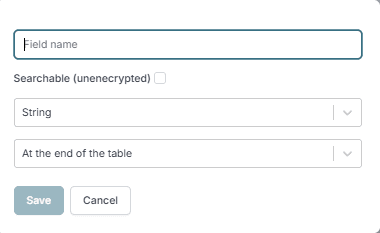
You can also choose where in the table the new field should appear.
💡 Tip: Use the “Searchable” checkbox only for fields where fast, unencrypted lookup is needed.
Using Tables in a Workflow
Once you have created a table and added fields, you can start using it in your workflows through the Table action.
To use a table in a workflow:
- Create or open a workflow.
- Add a new action.
- Select Table from the app dropdown.
- Choose one of your existing tables and configure the action event.
This allows you to insert, update, delete, or retrieve data from your custom table.
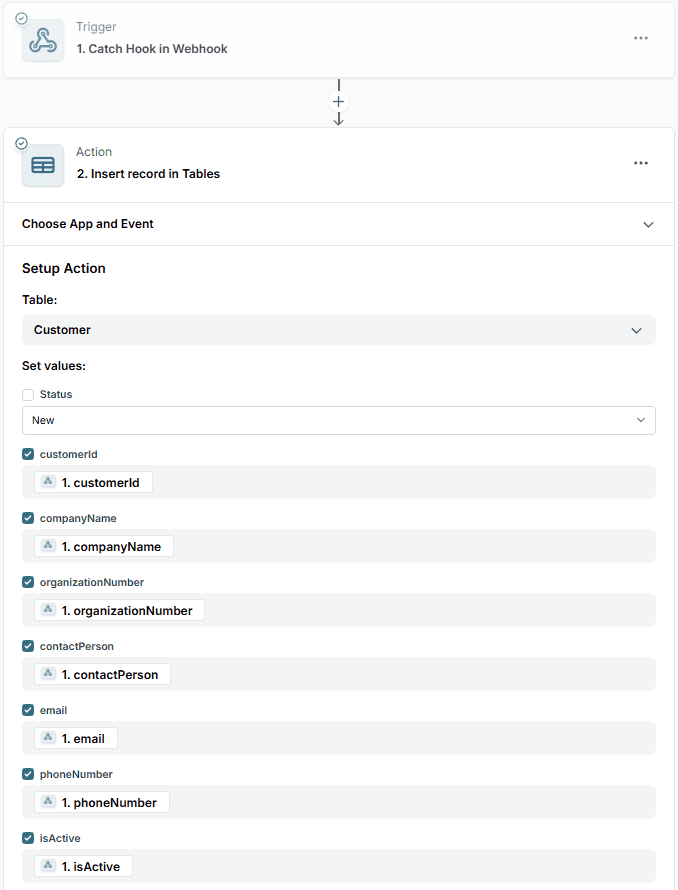
📘 See full documentation for Table Actions: Tables