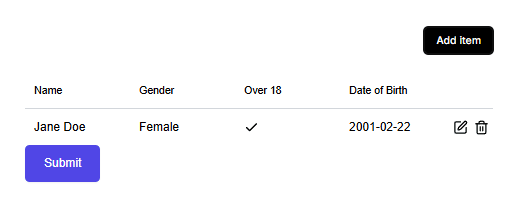
Smart Object Templates
Smart Object Templates allow you to predefine a set of values or options that can be reused inside a SmartTable element in your Smartforms.
By creating these templates, you can maintain consistency, speed up form building, and avoid repetitive data entry.
Creating a Smart Object
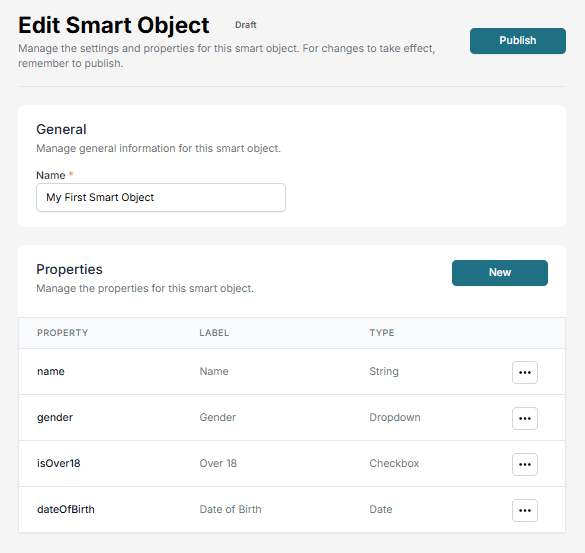
- Navigate to Studio → Templates → Smart Object.
- Click New Object to create a new Smart Object
or select an existing object to edit. - Click New Property to add a new field to your Smart Object.
- Fill in the following fields:
- Property – The internal name of the field (used in logic and references).
- Label – The display name shown to users in the SmartTable.
- Type – The input type for this field. Available options:
- Text – A single-line text field.
- Dropdown – A dropdown menu with selectable options.
- Checkbox – A checkbox for true/false values.
- Date – A date picker.
- Repeat the process to add as many properties as needed.
- Click Publish to save and make the Smart Object available.
💡 Tip: Keep your Property names short but descriptive, as they may be used in API responses and logic rules.
Using a Smart Object in a SmartTable
Once you have created a Smart Object template, you can use it inside a SmartTable element in your Smartform:
- Add a SmartTable element to your Smartfom.
- In the Properties panel for the SmartTable, select the Smart Object you want to connect.
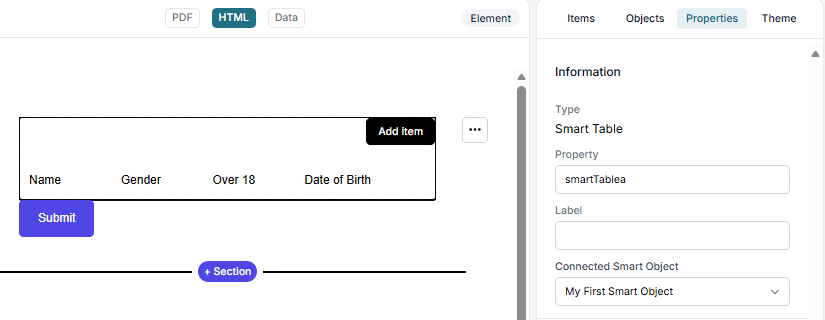
- Click Create Form to open the Smartform.
- The SmartTable will now display all the fields/properties you defined in your Smart Object template.
- Users filling out the Smartform can enter values for each property directly in the SmartTable rows.