Contact Lists
The Contact Lists feature lets you create and manage lists of people that can be used in Smartforms.
Contact Lists are also used for access control. Only people in the list can open and use a Smartform.
Create a Contact List
- Go to Contact Lists in the application
- Click New
- Enter a name for the list (for example:
Project TeamorCustomer Support) - Click Save
Manage a Contact List
After creating a list, you can manage it from the overview.
- Click the three-dot menu (⋯) on a list to see available actions:
- Activate / Deactivate – Enable or disable the list
- Edit – Update the list and its members
- Delete – Remove the list
Add people to a Contact List
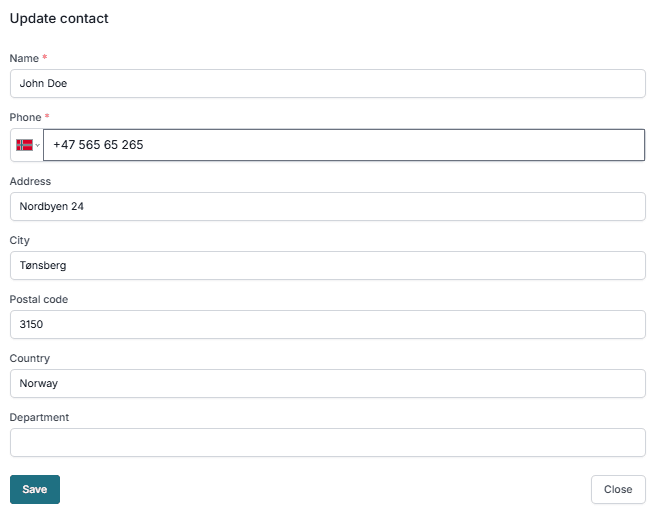
- Open a contact list and click Edit
- Add a new person by entering the following details:
- Name (required)
- Phone (required, including country code)
- Address
- City
- Postal Code
- Country
- Department
- Click Save to add the person
Use a Contact List in a Smartform
- Open your Smartform
- Go to the Process tab
- Select your Contact List
Only people in the selected list will be able to open the Smartform.
👉 See more in Process settings
User access and authentication
When a Smartform is linked to a Contact List:
- The user opens the Smartform
- An authentication window is shown
- The user enters their phone number
- A verification code (SMS) is sent
- The user enters the code to access the Smartform
If the phone number is not in the Contact List, access is denied.
Best practices
- Use clear and descriptive names for lists
- Keep phone numbers updated
- Deactivate lists instead of deleting them when possible
- Review lists regularly to control access