Design workspace overview
The Design workspace is divided into three main areas:
-
Left panel (Action / Page / PDF)
Manage Smartform settings and publishing -
Top toolbar (Smartform navigation and modes)
Switch between tabs like Design, Rules, Translations, and Configuration.
This is where you control how you work with the Smartform. -
Center area (Editor)
Build your form layout and content.
This is where you see your Smartform and all the changes you make in real time.
You can also switch between HTML, PDF, and Data views. -
Right panel (Items / Objects / Properties / Theme)
Add elements and configure their behavior
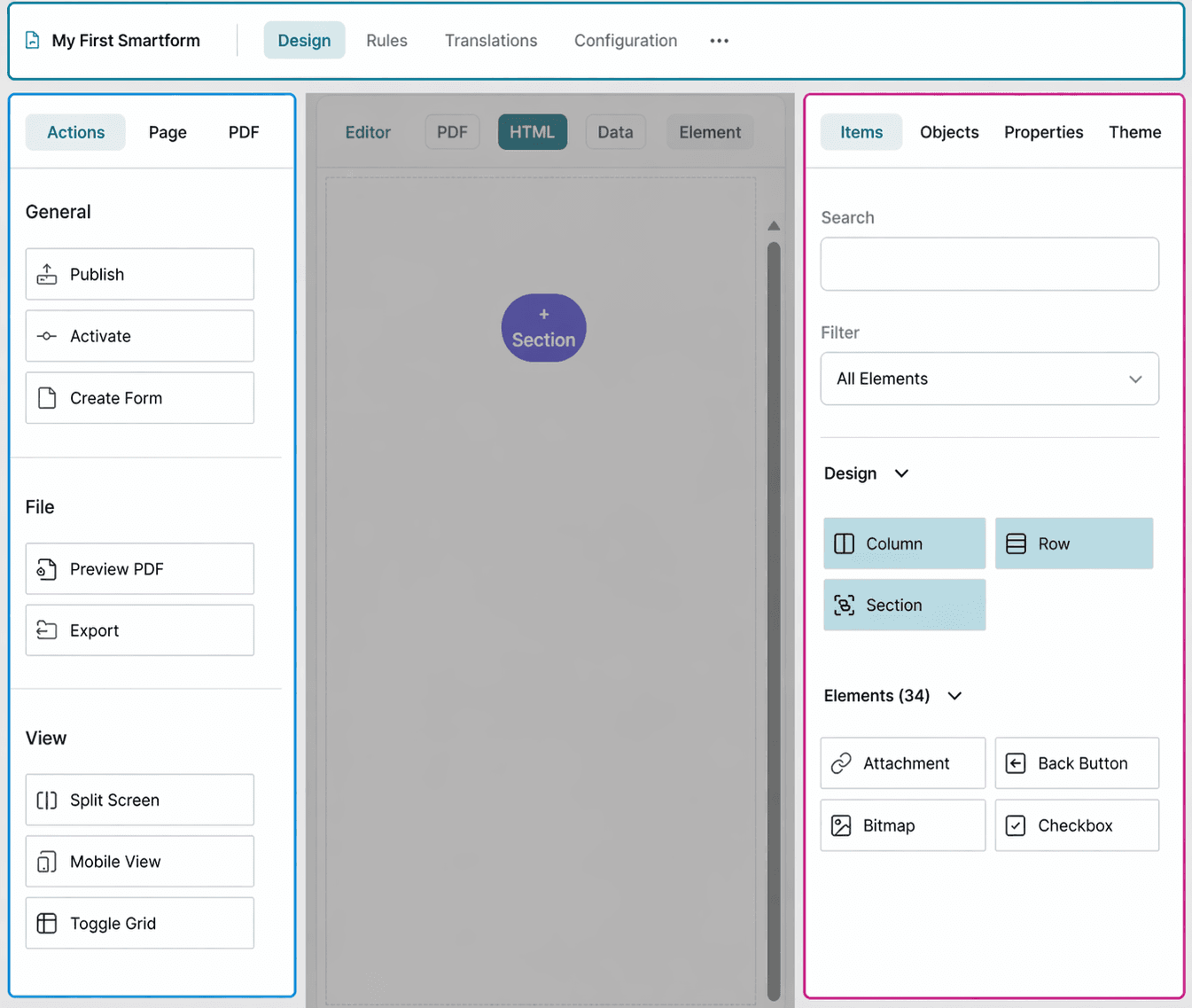
- Top toolbar highlighted (navigation and view modes)
- Left panel highlighted (Actions)
- Right panel highlighted (Items/Properties)
Layout structure
Smartforms are built using a structured layout:
| Element | Description |
|---|---|
| Page | The main container of the Smartform |
| Section | Groups content into logical parts |
| Row | Defines horizontal layout inside a section |
| Column | Splits rows into vertical areas |
| Element | Content such as text, inputs, or images |
This structure helps you create flexible and consistent layouts.
💡 Tip:
Think of the layout like building blocks. Start with sections, then add rows and columns, and finally place your elements.
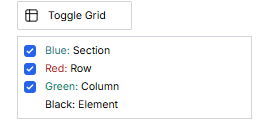
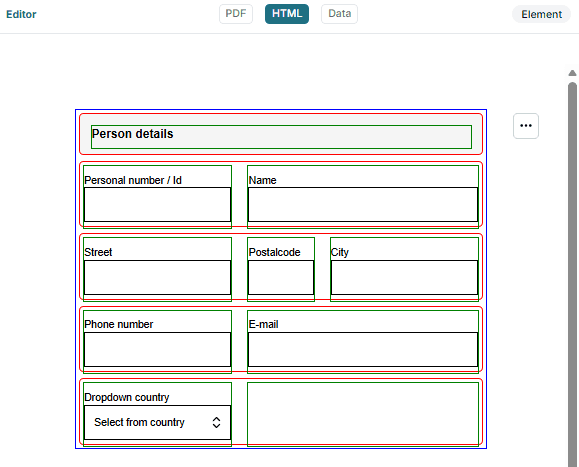
To better understand the structure, you can enable Toggle Grid in the left toolbar. This will display the layout grid and help you see how sections, rows, and columns are organized.
How Smartforms are typically built
Most Smartforms follow this general process:
- Structure the layout using sections, rows, and columns
- Add elements such as inputs, text, or images
- Configure properties and behavior
- Preview and test the form
- Publish and activate
💡 Detailed steps are explained in the sections below.
Design tabs
Within the Design view, you can configure different parts of your Smartform:
- Action – Publish, activate, and manage the Smartform
- Page – Configure general Smartform settings
- PDF – Control how the Smartform is exported as a PDF
- Items – Add elements to your form
- Objects – Manage reusable data objects
- Properties – Configure behavior and styling
- Theme – Apply styling and themes