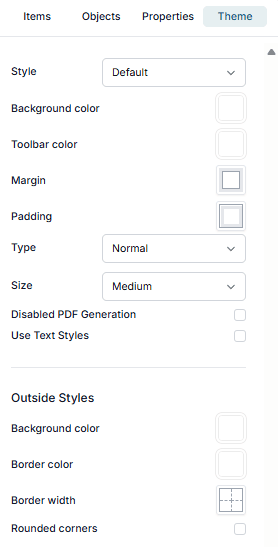
Theme

The Theme tab in Studio allows you to customize the visual style of your Smartform, including colors, spacing, and overall layout appearance.

Overview

The Theme tab controls the look and feel of your Smartform.
Changes made here affect the entire form, making it easy to apply consistent styling across all sections and elements.

Theme Settings

Style

Select from predefined theme styles (e.g., Default) to quickly apply a base look.

In addition to the default styles, Studio allows you to apply your own custom theme styles.

  • You can create and manage custom themes in Studio → Template → Styles.
  • Once created, your custom style will appear in the Style dropdown in the Theme tab.
  • Selecting it will instantly apply your custom CSS to the entire Smartform.

📄 For step-by-step instructions on creating theme templates, see Template → Theme Styles.

Background color

Sets the main background color for the form area.

Toolbar color

Changes the color of the form’s toolbar/header area.

Margin

Defines the spacing outside the form’s main content area.

Padding

Defines the internal spacing inside the form content area.

Type

Choose how users move through your Smartform:

Step by step

Adds a guided header to the form with the names of all sections and inserts Back / Next buttons at both the top and bottom of the Smartform.

  • Navigation: Clicking Next or Back switches to the next/previous section.
  • Pages = Sections: Each section is treated like its own “page.” (e.g., 3 sections → 3 pages.)
  • When to use: Longer forms, onboarding-style flows, or when you want users to complete sections in order.

💡 Tip: Keep section names short so they fit nicely in the header.

Size

Adjusts the overall scale of form elements:

  • Small
  • Medium
  • Large

Disabled PDF Generation

Enable this option to prevent PDF generation for the form.

Outside Styles

These options control the styling of the form’s outer container.

Background color

Sets the color behind the form container.

Border color

Changes the color of the container border.

Border width

Adjusts the thickness of the container border.

Rounded corners

Toggles rounded corners for the form container.

Resetting to Defaults

Click Reset to default at the bottom of the Theme tab to revert all theme settings to their original state.

Best Practices

  • Keep background and text colors high-contrast for readability.
  • Use consistent margin and padding for a balanced layout.
  • Test your theme in Mobile View to ensure it works on all screen sizes.
  • For Step by step forms, plan section order and names carefully to improve user experience.