Getting Started
📝 Note: You need access to Doc Gen Studio to follow these steps. If you do not have access, contact your system administrator.
This guide shows how to create and use your first Smartform in Doc Gen.
Step 1: Open Studio
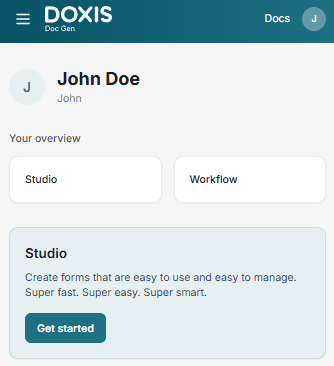
- Go to your start page
- Click the Studio card
Step 2: Create a Smartform
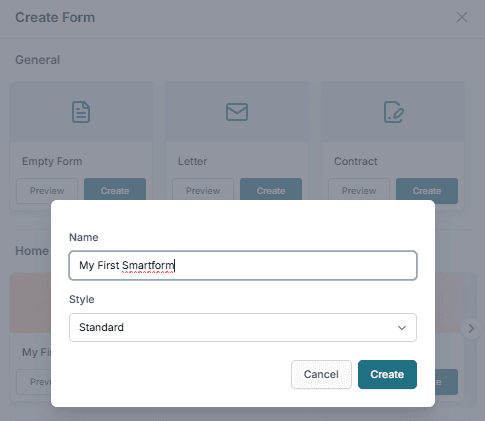
- Click Create form
- Choose:
- A template (a ready-made form you can reuse), or
- Create empty form
- Enter a name (for example: My first Smartform)
- Press Create
Step 3: Design your Smartform
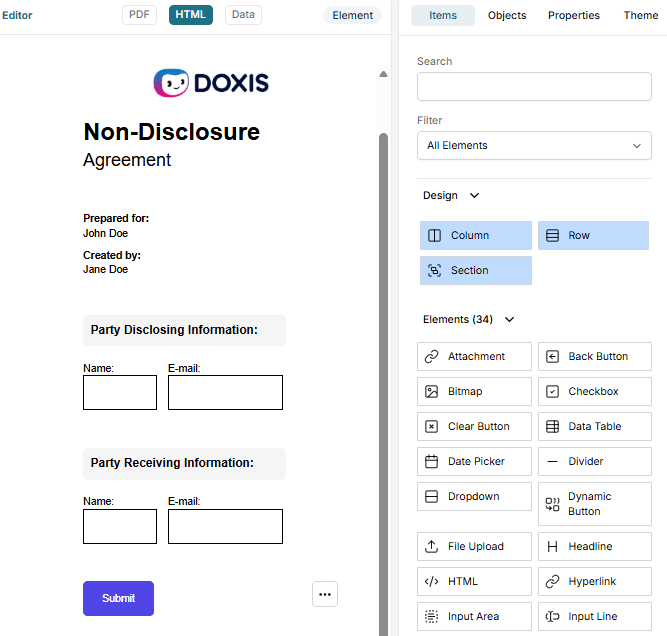
You can now edit your Smartform.
- Add or update fields using the Items panel on the right
- Adjust layout and content
- Make sure everything looks correct before continuing
In this example, we use a simple Smartform layout to keep things easy to understand.
Step 4: Publish and open the Smartform
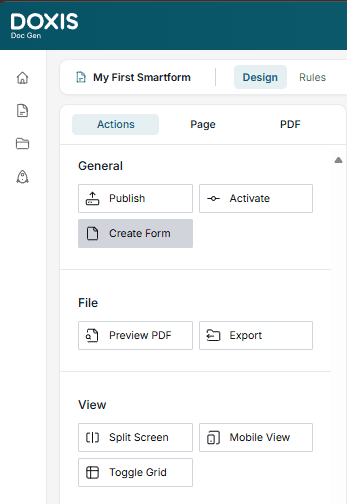
- In the Actions section on the left:
- Click Publish to save the Smartform
- Click Activate to make it available
- Click Create Form to open the Smartform
The Smartform will open in a new window.
💡 Tip:
You can also open a Smartform from the Smartforms list by selecting it and clicking Create form.
This is useful when working with existing Smartforms.
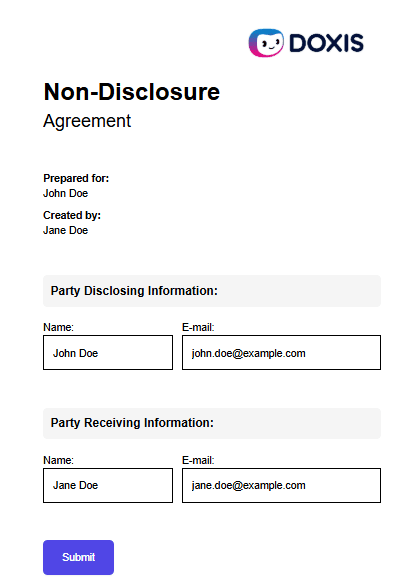
Step 5: Fill out the form
- Enter data in the Smartform
- Click Submit
After submission:
- The form becomes read-only for the user
Step 6: View submitted data
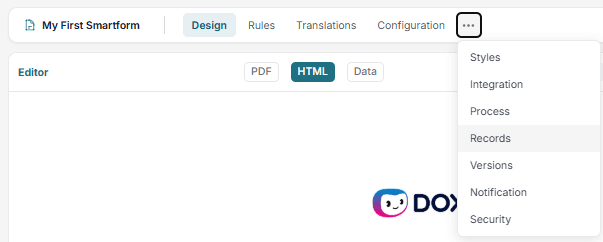
- Go back to the Smartform in Studio
- In the top toolbar, click the three dots (⋮)
- Select Records
Step 7: Review the result
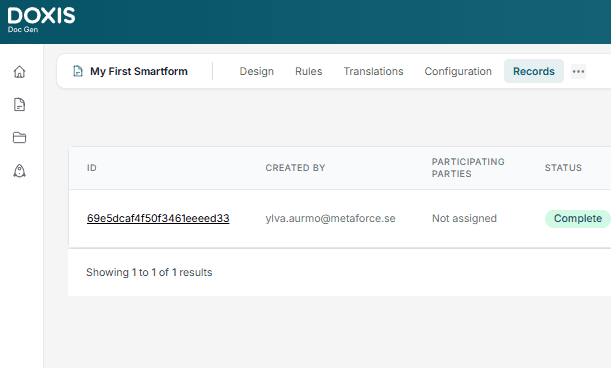
- In the Records view, find your Smartform
- Status will show as Completed
- Select the entry to view submitted data
Result
You have now:
- Created a Smartform
- Published and activated it
- Filled it out as a user
- Viewed the submitted data
You are now ready to continue working with Smartforms in Doc Gen.