Workflow

Overview

The Centerpoint Workflow is an easy-to-use, no-code application that allows you to build advanced step-by-step processes for automating different tasks that often are handled manually. A typical example is to look up data through a REST API before passing the data onto a Smartform that is then sent to a person to verify an order by an electronic signature. Workflows have logical controls that allow you to design a series of actions depending on if one or several conditions are met or not. REST API and Webhook support also make integration to custom applications very easy.

Features

FeatureExplained
Smartform TriggerA workflow can be triggered by a Smartform submit
Editor TriggerA workflow can be triggered by an Editor submit
Cron TriggerA workflow can be triggered by a Cron schedule
WebHook TriggerA workflow can be triggered by a WebHook
Smartform ActionA Smartform can be defined as an action in a workflow
REST APIA workflow can include REST API calls to POST or GET data
WebHookA workflow can generate a webhook that can be picked up by other systems
Microsoft OutlookA workflow can generate a mail that is sent via M365
FilterA workflow can have defined filters that will make the workflow continue or stop
PathVarious Paths can be started based on if conditions are met or not
SplitA number of new processes can be generated when conditions are met

Dashboard_Workflow!

Getting Started

All workflows need a trigger to start. Once a workflow is triggered, it performs actions based on your setup.

Creating a Trigger

A trigger starts a workflow. The most common types are:

  • Smartform Submit – Triggered when a form is submitted.
  • Webhook – Triggered when an external system sends data.
  • Cron Schedule – Triggered at a specific time or interval.
  • Editor Submit – Triggered when an editor submits a document.

How to Set Up a Trigger:

  1. Open Workflow and click “Create New Workflow.”
  2. Select a trigger type (Smartform, Webhook, Cron, etc.).
  3. Configure the trigger settings.
  4. Click “Save” to finalize your trigger.

Adding Actions

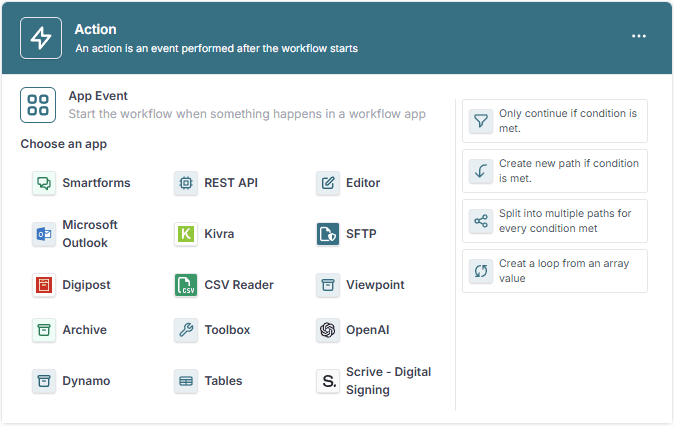
Once a trigger is set, define what happens next by adding actions such as:

  • Sending emails via Microsoft Outlook.
  • Calling REST APIs to fetch or send data.
  • Generating documents or PDFs.
  • Sending messages through Kivra or Digipost.

How to Add an Action:

  1. Click inside your workflow.
  2. Select an action type (e.g., Send Email, API Call, Upload File).
  3. Configure the action settings.
  4. Save and repeat for additional actions.

Activating & Testing Your Workflow

Before a workflow can run, it must be activated.

How to Activate a Workflow:

  1. Open your workflow from the Workflow List.
  2. Click “Activate” (this will check for errors).
  3. If errors are found, correct them and try again.

How to Test Your Workflow:

  • If your trigger is a Smartform, submit the form.
  • If it’s a Webhook, send data to the webhook URL.
  • If it’s a Cron Schedule, wait for the scheduled time.

Check the **workflow history ** to confirm the execution.

Workflow_history!


Example: Look Up Company Info via REST API

Imagine you have a Smartform where a user enters a company registration number. You can create a workflow that:

  1. Triggers when the field is updated.
  2. Calls a REST API to fetch company details.
  3. Fills in the company name and other data in the Smartform.

workflow_gettingstarted!

Example: looking up company information through a REST API when a special field changes and then filling data back into the Smartform.

Home

When starting the Workflow application, you will see a workflow Home page. Here you will see the latest workflows that have been created. You also have access to a button to create a new workflow.

The list of your latest workflows has an option to ‘See all’ workflows. Choose this option to move quickly to the list of workflows to Activate, Disable, Delete, or Edit a Workflow. The other alternative is to press the LIST menu (left) to see the same list.

From the List menu, you can access the following functions by pressing the “…” menu, which is available for each record in the list.

Menu actionExplained
ActivateWill activate the workflow. The workflow will be tested for errors before it is activated. You will get an error message if any errors are found, and the workflow will keep the state INACTIVE
DeactivateAn active workflow will have a menu called Deactivate to stop it from running. When deactivating successfully, you will see that the WORKFLOW will change status to “INACTIVE”
EditThis menu item will open the workflow for editing at the same time as setting the state to INACTIVE. When you are done editing the workflow, you will need to ACTIVATE the workflow again.
DataThis option will show a complete list of workflows that have been run with its connected data. The dataset is complete and contains all data from all steps in a workflow. This data can also be included through API integration.
DeleteThis option will delete the workflow. None of the connected items in the workflow will be affected.
Move to FolderAllows you to move the workflow to either a private or shared folder for better organization and accessibility.

Workflow features

A workflow is a set of components that are combined and that are reusing data across components. Components are categorized into Triggers and Actions.

CategoryExplained
TriggerComponents that will make a workflow to start running
ActionComponents that will reuse data across the workflow, and perform logical functions or actions

Triggers

A trigger is a component that will kick off a workflow under specified conditions.

Smartform

A Smartform can trigger a workflow. The reason could be to update data from a Smartform into other systems or look up data. The options are endless.

Submit

You can define that Submit in a Smartform is the action that will trigger the Workflow. When selecting this trigger action you will have to select which of your active Smartforms that will be connected as triggers.

Element Change

A Smartform can trigger a workflow when an element is assigned an active workflow from the “Integration: Workflow - On Value Change” dropdown in the element properties. When the selected element’s value changes, the assigned workflow is triggered. The workflow can then collect data from the Smartform, retrieve additional information via a REST API, and update the Smartform with new data.

For example, when a user enters an organization number, the workflow can automatically look up the company details and populate fields such as the company name and other relevant information.

On load

This trigger activates the Workflow when a Smartform is loaded or opened by a user for the first time. It is useful for preparing or pre-filling data before the user begins interacting with the form. For example:

  • Use an API call to retrieve user-specific data (e.g., name, membership status, or custom fields) and pre-fill the Smartform.

Webhook

A Webhook is a trigger that starts your Workflow when an external system or application sends data to it. It allows your Workflow to respond automatically to events or updates from other tools.

When you use the Webhook trigger, a unique Webhook URL is generated. You can provide this URL to external systems or services. Whenever those systems send data to the URL, the Workflow is initiated, enabling seamless automation.

Cron

Cron is a system for scheduling tasks at specific times or intervals, commonly used for automation and repetitive workflows. It’s a flexible and powerful way to ensure your tasks run exactly when you need them.

Cron (Standard)

For users familiar with cron expressions, this option provides precise scheduling capabilities. Cron expressions define workflows that run at specific intervals, such as:

  • 0 0 * * * — Runs daily at midnight.
  • */15 * * * * — Runs every 15 minutes.
  • 0 9 * * 1-5 — Runs at 9:00 AM on weekdays.

Cron Calendar

This user-friendly interface lets you schedule triggers without writing cron expressions. You can:

  • Set specific trigger times (e.g., 12:00 AM UTC).
  • Choose repeat intervals like daily, weekly, or custom (e.g., every 3 days).
  • Select specific days of the week for the trigger (e.g., Monday, Wednesday, and Friday).

Editor

Editor Onload

This event triggers the Workflow to retrieve custom input data before the Editor document (DXML file) is created by a user. It’s ideal for initiating processes that need to run when creating DXML begins, such as pre-filling fields or fetching relevant data

QA Before Completion

This event triggers the Workflow during the quality assurance phase, just before the editing process is finalized. It can be used to verify data or ensure certain criteria are met before completion.

Editor on Completed

Triggers the Workflow when the editing process is fully completed. This is useful for actions like notifying stakeholders, updating archive, or initiating subsequent steps in the process.

PDF Created

This event triggers the Workflow when a PDF version of the online document is generated. It’s particularly helpful for tasks like saving the document to a specific location, sharing it with other systems, or sending it to a client.

Actions

Smartforms

New

This function will extend a current Smartform or add a new one. You can, for instance, make an API look-up of the membership/customer status of an individual. Depending on the result, the current Smartform used by the individual can extend with new or altered questions/information, or the individual can be presented with a totally new Smartform. This is a great function for improving the customer experience and for improving data quality.

Send New

Depending on the data fed into a Smartform, a personalized contract or receipt can be generated and presented online to the Recipient. In the case of a contract, it can now be signed electronically by the Recipient. Once the contract is signed by the Recipient, a copy of the signed document is stored in the Archive, and a copy of the signed contract can simultaneously be sent to the Recipient.

Update Values

Select this option if you want to update values in an existing Smartform. This action is used in combination with the “Element Change” trigger, which allows the workflow to collect data from the Smartform, look up the collected data through a REST API, and then feed the new data back into the Smartform. A good example is to enter an organizational number into the Smartform and then let the workflow automatically fill in the company name and other available and relevant information.

Create PDF

Generates a PDF version of the Smartform based on its current data. This is particularly useful for creating formal documents such as invoices, reports, or summaries. The generated PDF can then be used for record-keeping, sharing with other systems, or delivering to the end user.

New Smartform PDF

With this action, you can create a new PDF document using data from a Smartform or other actions within the Workflow. The Smartform doesn’t need to be filled out manually by a user. You can automatically populate the PDF with content gathered or generated from previous steps in the Workflow.

This makes it easy to dynamically generate customized PDFs, such as contracts, receipts, or reports, without manual input.

REST API

The REST API Action can make both REST API calls and generate webhooks.

Example

Below is an example that sends a value from a Smartform into a REST API and insert a new value from the REST API into a new Smartform.

Defines REST API

In this example, we define an external REST API that lookup official Norwegian company information from an organizational number. We are using the organizational number from an input field in a Smartform. (1. orgnumber)

Test the REST API

The workflow allows us to test that the REST API is working by inserting a value for the org number to test.

Workflow_REST_API!

Insert into Smartform

Now you can insert the return values from the REST API into the Smartform.

Workflow_REST_API

Archive

The Archive Action allows you to store documents in a specific folder within the Archive Application, making file organization and retrieval simple. You can choose between three document types: Digitally Signed Files, which are secure, signed documents; Smartforms, which are files generated from Smartforms; or Default Document, which includes any other type of file.

Workflow_Archive.png

To configure the action, select the file you want to store, choose the appropriate document type, and specify the archive folder where it should be saved. You can also add metadata to the Search Field to make it easier to locate the file later.

Toolbox

The Toolbox Actions provide a set of utility functions that help process and transform data within a workflow. These actions are designed to handle both text and file formats, offering flexibility for various data processing needs.

Currently, the Toolbox includes actions for Base64 encoding and decoding, allowing you to:

  • Convert Base64 to a PDF file object for further processing or storage.
  • Convert regular text to Base64, enabling secure encoding for transmission or storage.
  • Convert Base64 back to regular text, making encoded data readable again.

Tables

The Tables Action allows you to interact with custom tables that you’ve created in the “Tables” tab. This provides a powerful way to store, retrieve, and manipulate structured data within your workflows.

Adding a Tables Action

To add a Tables action to your workflow:

  1. Click the button in your workflow canvas
  2. Select Tables from the app selection dropdown
  3. Choose one of the tables you have created in the “Tables” tab
  4. Select an Action Event from the available options

Action Events

The Tables action provides several event options for working with your custom tables:

Insert Record

Allows you to add a single new record to your selected table. You must provide values for the columns you’ve defined in your table. This is useful for storing individual pieces of information collected during workflow execution.

Insert Multiple Records from CSV File

Enables bulk data insertion by uploading a CSV file containing multiple records. The CSV file should have headers matching your table’s column names. This is ideal for importing large datasets into your workflow.

Update Record

Modifies an existing record in your table based on specific criteria. You must specify which record to update (usually by ID or another unique identifier) and provide the new values for the columns you want to change.

Update Multiple Records

Updates multiple records that match your specified criteria. This is useful for batch-updating information across your dataset based on certain conditions.

Delete Record

Removes a single record from your table based on the criteria you specify. This helps maintain data cleanliness by removing outdated or irrelevant information.

Delete Multiple Records

Removes multiple records that match your specified criteria. This is useful for batch cleanup operations on your dataset.

Find Record

Retrieves a single record from your table based on search criteria. You can specify which columns to search and the values to match. The found record’s data can then be used in subsequent workflow steps.

Find Multiple Records as JSON Strings

Searches for and retrieves multiple records that match your criteria, returning them as JSON strings. This allows for complex data retrieval operations where you need to work with multiple matching records.

Get Record from JSON String

Converts a JSON string representation of a record back into a usable record object in your workflow. This is particularly useful when you need to parse JSON data received from external systems or previous steps.

Requirements and Tips

  • The table must have defined columns before inserting or updating records
  • When using the Find Record or Find Multiple Records functions, you can filter results using various comparison operators
  • For optimal performance, consider adding indexes to columns you frequently search on
  • JSON string operations are useful when you need to convert between structured data and text-based formats for integration with other systems

Digipost

The Digipost Actions allow you to interact with Digipost, a secure digital mailbox service. These actions enable workflows to verify user accounts and send messages securely.

To use these actions, you must have an active Digipost connection configured in your workflow.

Find user

The Find User action checks if a recipient has a Digipost account based on their Personal Identification Number. Before sending a message, this action should be used to confirm the recipient is a registered Digipost user.

Send Message in Digipost

The Send Message action allows you to securely send PDF documents to a recipient’s Digipost mailbox. To use this action, you must provide the recipient’s Personal Identification Number, a subject line, and a PDF file. If multiple PDFs are included, they will be merged into a single document.

Workflow_Digipost.png

Editor

The Editor Actions provide functionality for creating, editing, and generating documents in different formats. These actions allow workflows to handle structured documents efficiently using XML-based data input.

Edit document

Generates a DXML document based on a template and data, and opens the document in the Editor for editing.

Create DXML

Generates a DXML (Dynamic XML) document based on a template and structured data.

Create PDF

Converts structured XML data into a formatted PDF document using a template.

Microsoft Outlook

The Microsoft Outlook connector sends mail via an Outlook account. In order for this to work the Entra ID administrator must grant the application (connector) consent. See the official Microsoft documentation: Grant tenant-wide admin consent to an application.

As you can see in the image below the Outlook connector needs consent for:

  • Send mail as you
  • Send mail on behalf of others or yourself

Workflow_OutlookConsent

Once the consent is given you can start to send mail.

Kivra

Kivra is a secure digital mailbox service that allows users to receive, store, and manage important documents, invoices, and letters digitally. By integrating Kivra into your workflow, you can automate document distribution, invoice processing, and secure communication with recipients who use Kivra.


1. Set Up Kivra Integration

Before you can use Kivra in Workflow, you must first create an integration within Kivra. Follow these steps:

Go to Kivra Developer Portal

Visit the official Kivra documentation for developers:
Kivra Developer Documentation

Create an Integration in Kivra

  1. Sign in to your Kivra business account.
  2. Navigate to the Developer section.
  3. Register a new integration and obtain your Tenant Key and other required credentials.

Once you have successfully created an integration in Kivra, proceed to set up the connection in Workflow.


2. Connecting Kivra to Workflow

Before using Kivra actions in Workflow, you need to set up a connection.

Steps to Connect Kivra

  1. Go to Workflow Apps: Open Workflow and navigate to the Apps section.
  2. Add a New Connection: Click “New Connection” to start the setup process.
  3. Select Kivra: From the dropdown menu, choose Kivra as your integration option.
  4. Configure the Connection:
    • Select Environment: Choose the appropriate environment (e.g., Production or Test) to match your requirements.
    • Enter Tenant Key: Provide the unique Tenant Key assigned to your Kivra account.
  5. Save and Activate: Click Save to establish the connection. Once saved, the connection will be available for use in Workflow.

After successfully setting up the connection, you can start using Kivra actions within your workflows.


Kivra actions

Find user

The Find User action allows you to check if a specific recipient is registered with Kivra. This is useful for ensuring that the intended recipient can receive digital documents, invoices, or letters through Kivra.

Create document

The Create Document action allows you to generate a document by uploading a PDF file. If multiple PDFs are uploaded, they will be combined into a single document. Additionally, you can provide an HTML Responsive Content version of the document, which formats the document for better readability on different devices. This action does not send the document; it simply prepares it for further processing in the workflow.

Create invoice payment option

The Create Invoice Payment Option action allows you to generate an invoice payment request with different payment options for the recipient. Users can specify a due date (formatted in ISO 8601 YYYY-MM-DD), an amount, and a reference type. There are two available reference types:

  • SE_OCR: Used for OCR-compatible reference numbers.
  • TENANT_REF: A custom reference of your choice that must be consistent with the provided reference value.

Create invoice payment flexible option

The Create Invoice Payment Flexible Option action provides a more flexible way to generate an invoice payment request. This action ensures that recipients have controlled flexibility when making payments through Kivra. Users can specify a due date (formatted in ISO 8601 YYYY-MM-DD), a reference type (SE_OCR or TENANT_REF), and a reference value. This action allows users to define:

  • Minimum Allowed Amount: The lowest amount the recipient can pay (default is 1 SEK if not set).
  • Suggested Minimum Amount: A recommended lower payment limit, but the recipient can still proceed with a lower amount.
  • Suggested Maximum Amount: A recommended upper payment limit, which can be exceeded if necessary.
  • Maximum Allowed Amount: The highest amount allowed, with a hard limit of 150,000 SEK due to payment provider restrictions.

This action ensures that recipients have controlled flexibility when making payments through Kivra.

Create invoice payment

The Create Invoice Payment action allows you to process invoice payments through Kivra. Users can specify the payment method (e.g., Bankgiro), enter the receiving account number, and define the currency (only SEK is supported). If payments via Swish are enabled, a Swish Payee Alias can be included. This action also requires linking one or more payment options from a previously created invoice payment option and optionally defining a flexible payment option, allowing the recipient to enter an amount within a predefined range.

Workflow_Kivra_CreatePayment

Send letter

The Send Letter action allows you to digitally send letters to recipients via Kivra. Users must specify a recipient identifier (e.g., email) and ensure that the recipient is registered in Kivra. The subject and type of the letter (e.g., “letter”) must be defined. Optionally, users can attach the Compaign tag which is created in the Kivra Compaigns interface. The letter must include a document, which can be selected from a previously created document in the workflow. This ensures that official communications are securely delivered within Kivra.

Send invoice

The Send Invoice action enables you to send invoices directly to recipients in Kivra. Users must specify a recipient identifier (e.g., VAT number) to match the recipient with Kivra’s available records. The subject and type (e.g., “invoice”) must be defined. The invoice must include a document, which is selected from a previously created document, and a payment reference, linking it to an invoice payment created earlier in the workflow. This ensures that invoices are sent securely and can be processed efficiently within Kivra.

Condition

To include conditions in a workflow, you add one or several logical steps. The conditions are found to the right in the added form.

Only continue if the condition is met

This option stops a workflow at the current step or allows it to continue. An example is when you like to register a new member. If a person already is a member, you can stop the workflow, and if the person is not a member, you move it past the filter to register the person as a new member.

You register the conditions you want to select from data fields available in the workflow and add logical rules, like = > != etc., to decide if the workflow should continue to the next step or not.

Create new path if condition is met

This option enables the workflow to run different paths based on data condition rules. An example can be that a workflow will run into two different paths based on if personal information shows that a person is a member/customer or not. In this example, you can run into two different paths to adjust the communication.

Split into multiple paths for every condition met

This option allows the workflow to add one or several new paths based on one or several conditions met. A good example is when a Recipient (organization or individual) wants to change from one insurance broker to a new one. The new insurance broker will need general data about the Recipient (KYC) and a power of attorney to represent the Recipient with all the existing and potentially new insurance suppliers. The new broker sends a Smartform to the Recipient with all relevant questions for adding a new customer and a list of insurance suppliers that can be selected by the Recipient using a check-box list. By filling in KYC data, selecting which insurance companies the Recipient has and then electronically signing the Smartform, the workflow will send the KYC data to the relevant business systems at the new broker, and at the same time generate and automatically send a power of attorneys to all existing insurers in the format that each of the insurers wants.