Properties
The Properties tab lets you control how your Smartform looks and behaves.
When you select a section, row, column, or element, the Properties panel updates automatically with the relevant settings.
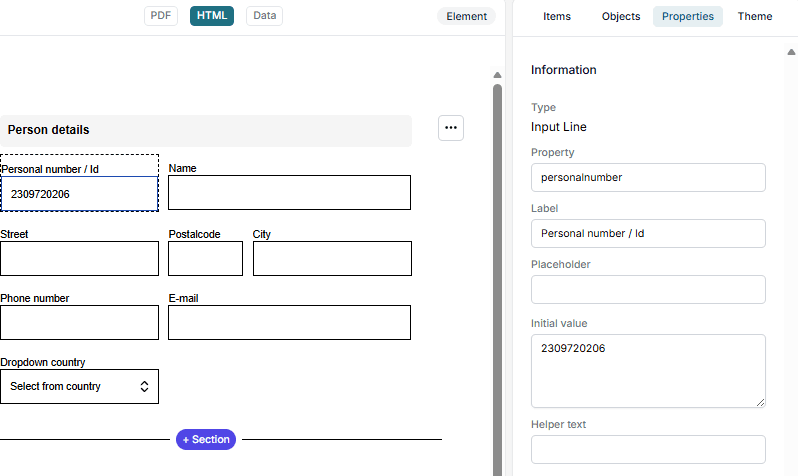
What you can configure
The Properties panel includes settings for layout, styling, and behavior.
General settings
| Setting | Description |
|---|---|
| Property | Unique field name used for integrations, API, and data export |
| Value | The actual value stored for the element |
| Helper Text | Help text shown to guide users |
Appearance
| Setting | Description |
|---|---|
| Text Color | Color of the text |
| Text Size | Size of the text |
| Bold / Italic / Underline | Style formatting for text |
| Alignment | Align content left, center, or right |
| Background Color | Background color of the element |
| Background Image | Add an image as background (sections only) |
| Icon | Display an icon before text |
Layout
| Setting | Description |
|---|---|
| Margins | Space outside the element |
| Padding | Space inside the element |
| Span | Controls column width inside a row |
| Rounded Corners | Adds rounded edges to elements |
| Border | Set border width and style |
| Border Color | Color of the border |
How to use the Properties tab
You can access properties in different ways depending on what you want to edit.
Select an element
- Click an element in the editor
- The Properties panel will update automatically
Switch between element, row, and column
- Use the selector inside the Properties panel
- Or double-click an element to quickly switch between Row and Column
Edit a section
- Hover over a section
- Click the three-dot menu (⋯)
- Select Properties
💡 Tip:
Start by selecting an element, then move up to row or section level if you need to adjust layout.
This makes it easier to understand how changes affect your Smartform.