Resources - User Documentation
The Resources tab in Templates allows you to upload and manage images that can be reused inside SmartForms.
These resources can be applied as background images for sections or as images inside a Resource element.
Creating a New Resource
-
Navigate to Studio → Templates → Resources.
-
Click New Resource.
-
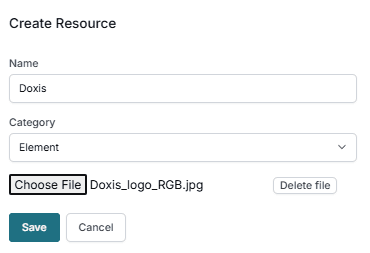
Fill in the required fields:
- Name: A descriptive name for the resource (e.g.,
Company Logo,Header Background). - Category: Select the category for the resource. (e.g., Element).
- Choose File: Upload the image file you want to use.
- Name: A descriptive name for the resource (e.g.,
-
Click Save to add the resource.
Using a Resource in a SmartForm
Once a resource is created, you can use it in a SmartForm in two ways:
1. Add as a Resource Element
- Insert a Resource element into your SmartForm.
- Select the element.
- In the properties panel, choose which Resource to use from the dropdown menu.
2. Set as Section Background
- Select the Section where you want to apply a background image.
- Open the properties panel for that section.
- Under Background Resource, select the image you want to use.
Best Practices
- Use meaningful names for resources (e.g.,
HeroBanner,FooterBackground) to make them easier to find later. - Optimize images for web to avoid slow loading times.
- Organize resources by category for easier management.
- Reuse uploaded images instead of uploading duplicates to keep the library clean.
Actions
- Save: Saves the new resource to the library.
- Cancel: Closes the window without saving.