Translations
The Translations tab in Studio allows you to make your Smartform available in multiple languages.
You can define a default language and then add additional languages, which can be translated automatically or manually.
How it Works
1. Select a Default Language
- The default language should match the language the Smartform was originally created in.
- This becomes the base text that other translations are generated from.
2. Add Additional Languages
- Click New to add another language to your Smartform.
- When you add a language, Studio can automatically translate your form into the selected language.
- You can support multiple languages in the same Smartform.
3. Automatic Translation
- If Automatic translation is enabled (checkbox at the top), the system will auto-translate all form text into any added languages.
- You can still manually adjust translations after the automatic translation is applied.
Viewing Languages in the Smartform
Once you have added multiple languages, you can preview them directly in the Smartform:
- Create or open a Smartform.
- In the top right corner of the toolbar, you will see a language dropdown listing all languages you have added.
- Select another language from the dropdown.
- The Smartform will instantly update, showing all translated text for that language.
This feature makes it easy to test and verify translations before publishing your form.
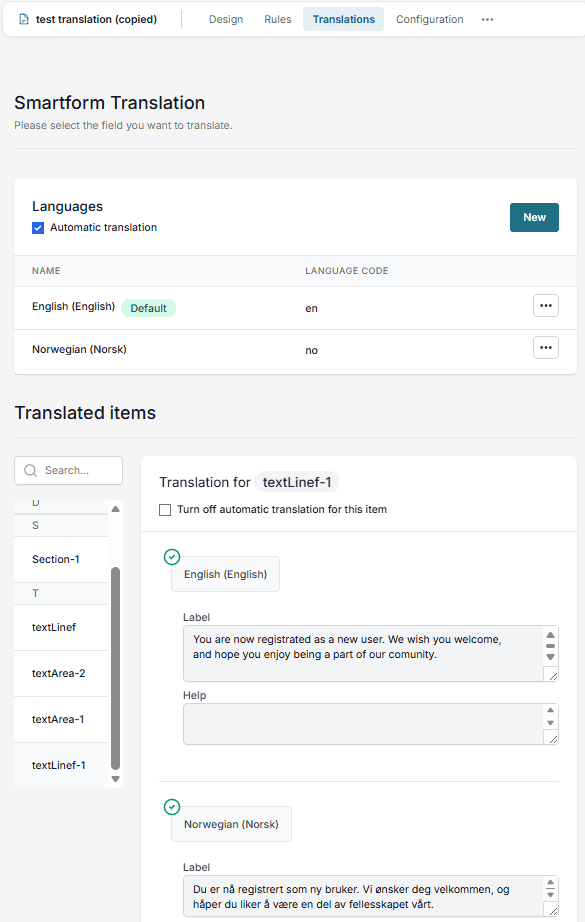
Translated Items
The Translated items table lists all translatable fields from your Smartform:
- Left column – Field identifiers (e.g.,
headerLine-dd51,Section,textArea-2e93). - Right column – The translation for the selected language.
- Use the search bar to quickly find a specific field.
- Click a field to view and edit its translation.
Overriding Automatic Translation
When you select a specific item from the Translated items list, the right-hand panel will show its translations for each language.
- To manually override the translation, check Turn off automatic translation for this item.
- Once enabled, you can freely edit:
- Label – The displayed field name.
- Help – The help text shown to the user.
- Custom required error message – A specific error message shown if the field is required but left empty.
- Each language can be edited independently.
Best Practices
- Always set your default language first before adding other languages.
- Use automatic translation for speed, but review important fields manually.
- Override translations for:
- Legal or compliance text.
- Fields with industry-specific terminology.
- Content where tone or meaning is critical.
- Keep translations concise for better readability across devices.
💡 Tip: Even with automatic translation enabled, you can fine-tune or fully replace translations for specific fields by turning off automatic translation for that item.