Objects
Objects in Studio are pre-made sections containing one or more elements. They work like templates to speed up Smartform creation.
Overview
An Object is a reusable building block for your Smartforms. Each object contains one or more elements, grouped into a ready-to-use section.
Using objects:
- Saves time when designing Smartforms.
- Ensures consistency across forms.
- Allows you to reuse common layouts or content blocks.
You can use built-in objects provided by Studio or custom objects that you create and save yourself.
Adding an Object to a Smartform
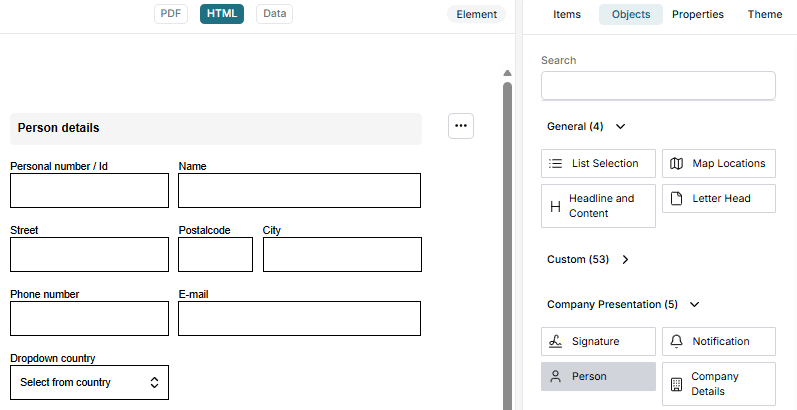
- Open the Objects tab in Studio, located in the right menu.
- Browse categories or use the search bar.
- Drag and drop the object into your Smartform layout.
Creating a Custom Object
You can save any section you’ve built in a Smartform for later reuse.
- Hover over the section you want to save.
- Click the three-dot menu to the right of the section.
- Select Export Section.
- Choose one of:
- To Object Library – Saves the section directly to the Custom category in Objects.
- File – Downloads the section as a file for backup or sharing.
- If saved to the Object Library, the section will appear under Custom the next time you open the Objects tab.
Best Practices
- Group related elements into one section before saving as an object.
- Use clear, descriptive names when saving to the Object Library.
- Keep commonly used branding, contact details, or disclaimers as objects for quick insertion.