Audit
The Audit application provides centralized logging of events across Doxis Doc Gen.
It enables tracking of user actions, system events, and integrations, supporting monitoring, troubleshooting, and compliance requirements.
Audit data can be accessed in three ways, depending on your use case:
- Audit Application (UI) – For interactive inspection and manual analysis
- Audit API – For programmatic access and integrations
- Audit Log Forwarding – For exporting logs to external systems (e.g., SIEM or logging platforms)
Accessing Audit Data
Audit Application (UI)
The Audit application is available from the Doc Gen start page and provides a user interface for browsing and analyzing audit events.
Purpose
- View and search audit logs
- Investigate user activity and system events
- Perform manual troubleshooting
Home
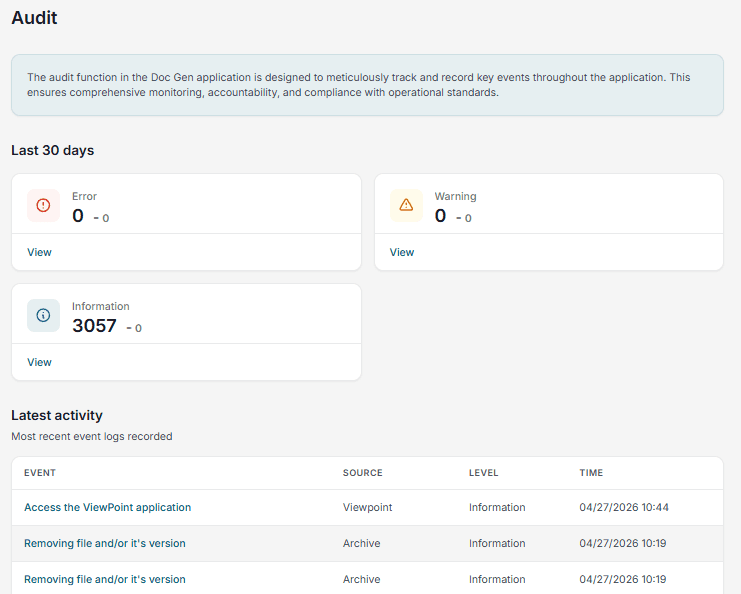
The Home view displays the most recent audit entries.
Features
- Summary tiles showing event distribution over the last 30 days
- Quick access to filtered event lists via View links
- Chronological list of recent audit entries
Steps
- Open Audit from the Doc Gen start page
- Review the summary tiles for a high-level overview
- Click View on a tile to filter events
- Click an event to view detailed information
Search
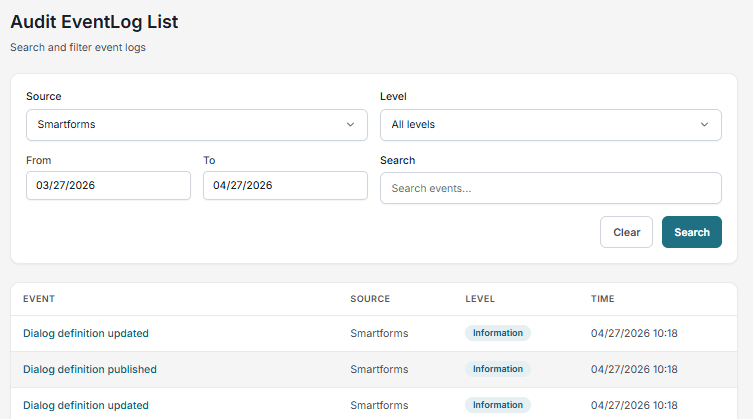
The Search view allows advanced filtering of audit records.
Features
- Filter by Source, Level, and Date range
- Free-text search across events
Steps
- Navigate to Search in the Audit application
- Apply filters:
- Source
- Level
- Date range
- Enter optional search text
- Click Search
- Select an entry to view details
Audit Entry Details
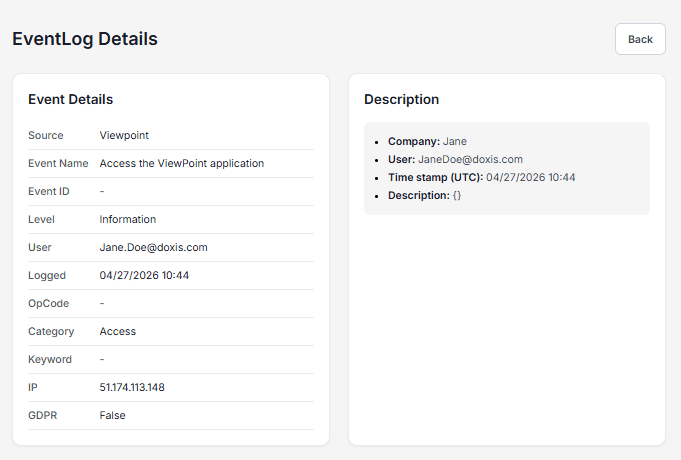
Each audit entry contains standardized metadata describing the event.
Standard Fields
| Field | Description |
|---|---|
| Source | Application that generated the event |
| Event | Name identifying the event |
| Event Id | Numeric identifier of the event |
| Level | Information, Warning, or Error |
| User | User responsible for the event |
| Logged | Timestamp of when the event occurred |
| OpCode | Operation code for integrations or custom tracking |
| Category | Event classification |
| Keyword | Keywords provided by the application |
| Computer | Originating machine (if available) |
| GDPR | Indicates if the event contains GDPR-related data |
| Details | Additional information about the event |
Audit API
The Audit API enables programmatic access to audit data, allowing integration with external systems, automation tools, or custom dashboards.
Purpose
- Retrieve audit logs for reporting or monitoring
- Integrate audit data into external systems
- Automate analysis and alerting
Usage
Audit data can be retrieved using the available API endpoints.
Typical use cases
- Fetch audit logs for a specific time range
- Filter events by source, user, or severity
- Build dashboards or monitoring tools
- Correlate audit data with external systems
General steps
- Authenticate using Doc Gen API credentials
- Call the relevant Audit API endpoint
- Apply filters (e.g., date range, source, level)
- Process the returned data in your system
Audit Log Forwarding
Audit Log Forwarding allows automatic export of audit events to external systems such as logging platforms or SIEM solutions (e.g., Elastic).
Purpose
- Centralize logs across multiple systems
- Enable real-time monitoring and alerting
- Support compliance and auditing requirements
Configuration
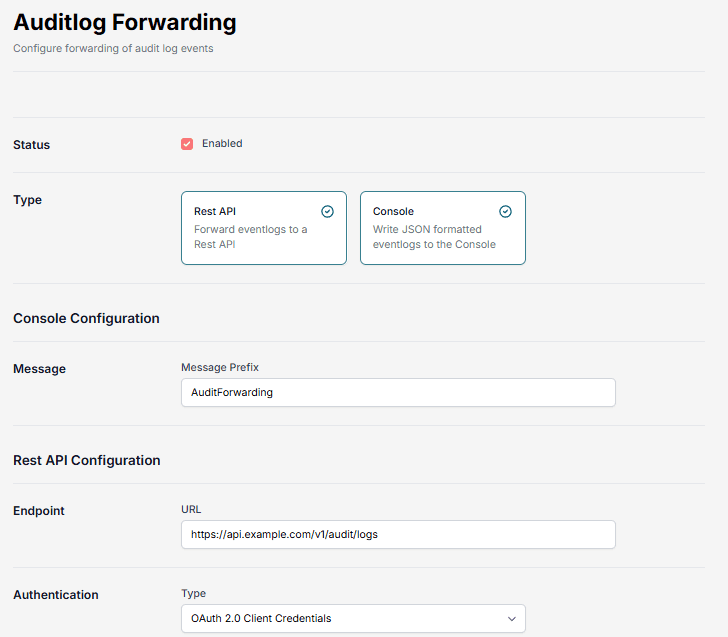
Audit Log Forwarding is configured in the Administration application.
Steps
- Open Administration
- Navigate to Integrations → Audit Log Forwarding
- Select a forwarding method:
- Console (for testing/debugging)
- REST API (for external systems)
- Configure the endpoint and required authentication
- Save the configuration
Important behavior
Audit log forwarding uses a fire-and-forget mechanism.
Implications
- No retry logic is implemented
- Failed deliveries are not resent
- Delivery failures must be handled by the receiving system
Recommendations
- Ensure high availability of the receiving endpoint
- Implement monitoring and logging on the receiving system
- Do not rely on forwarding as the only source of audit data
When to use each method
| Method | Best for |
|---|---|
| Audit Application | Manual inspection and troubleshooting |
| Audit API | Integrations, automation, and reporting |
| Audit Log Forwarding | Real-time streaming to external systems |