API
Note: The URLs referenced throughout this page point to Production. If you’re integrating against Sandbox or Staging, use your environment’s equivalent host instead of copying these values directly - check with your Doxis contact if you’re unsure of the exact host for your environment.
External
Smartforms has a rich set of REST API. The REST API requires that you setup authentication from the Admin application under Integration and API Clients.
The API documentation can be found here: https://smartforms.metaforce.net/documentation-api
Internal
Smartforms can integrate with REST APIs through an internal function. Currently, we only support REST APIs that doesn’t require authentication. If authentication is required, we recommend combining your Smartform with a Workflow.
REST API
To start with, you need an available REST API. The critical thing to remember is that the return properties must be the same as the Smartform properties for the data to be transferred from the REST API to the Smartform. This example will use the input argument, assumed to be an organizational number, and return the name of the company into the element in the Smartform with the property “firmanavn”.
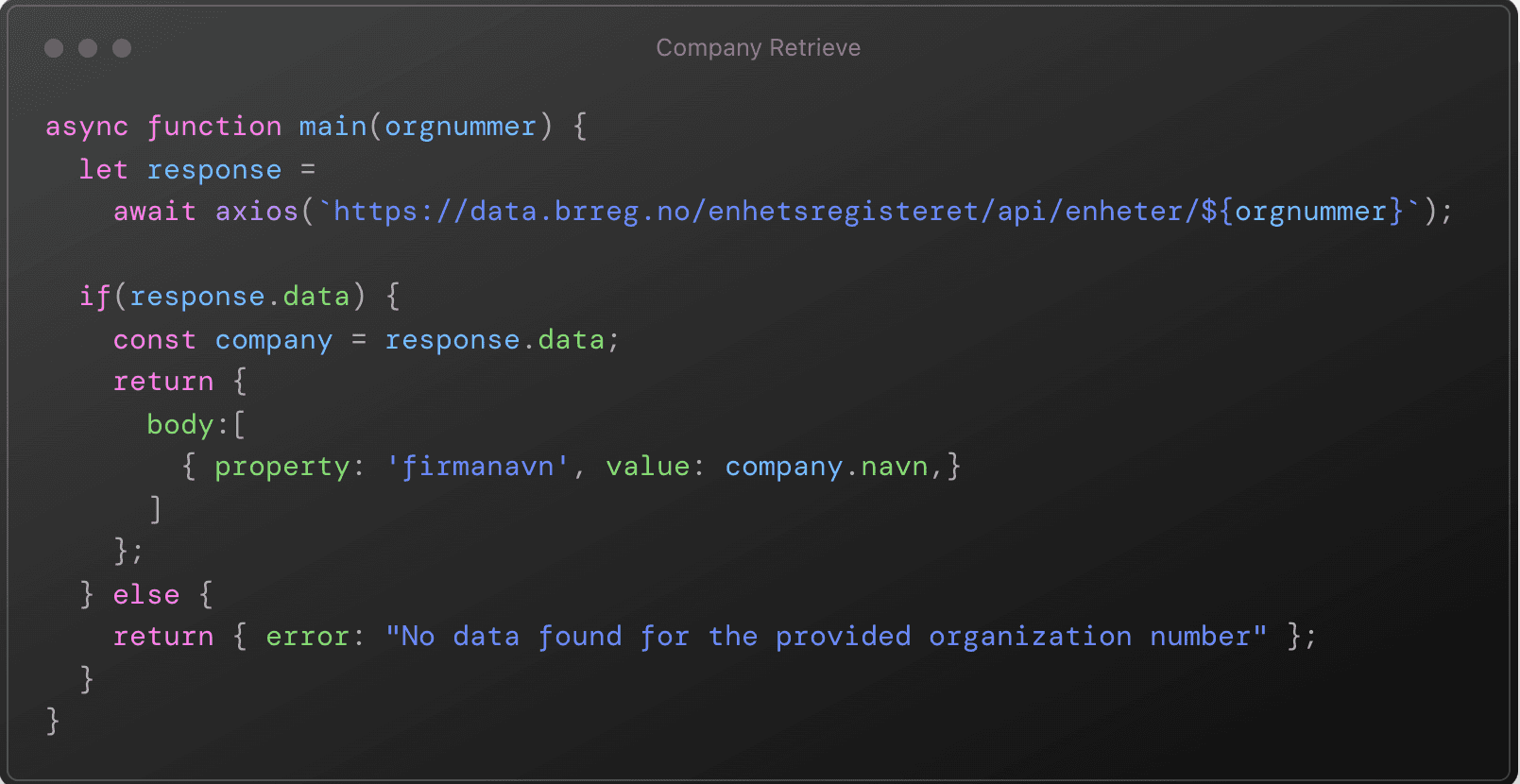
REST API registration
You need to register the endpoint of the REST API. You can do this from the top menu bar. By pressing NEW, you will be prompted to register a name for the API definition and the URL for the API.
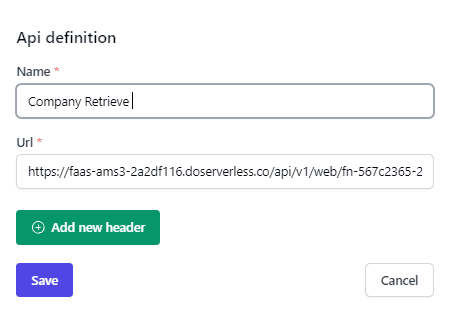
Once you have registered the API, you will see it in the list, and you can start using it in your Smartforms.

API Retrieve
Once you have your API registered in the Smartform, you can use it to retrieve data when a specific field is filled in. In this example, we have configured Organizational number to trigger the API call to fill in the company name, which, is this case, we have registered with the name “firmanavn” to match the correct property that was defined in the REST API.
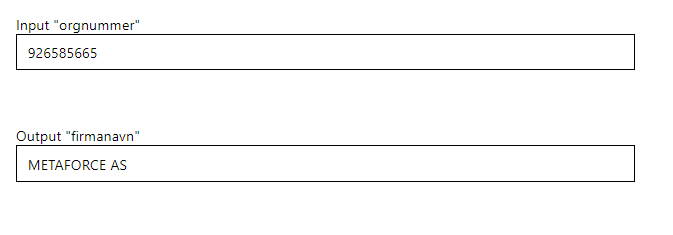
Element retrieve examples
Input line
This function allows you to use the value from an Input line element to retrieve and update fields with data from an external API.
You need to add your API definition to the API tab. Then set the Input Line to API retrieve in properties to the API you added. You can also push values.
The example below shows entering a organizational number and then updating fields with the corresponding company information.
const axios = require('axios').default;

async function main(args)
{
  const { orgno: orgnummer, ...restArgs } = args;

  // Validate orgnummer
  if (!orgnummer || typeof orgnummer !== 'string') {
    return { body: { error: 'Invalid or missing orgnummer' } };
  }

  try {
    console.log('Making request to:', 'https://data.brreg.no/enhetsregisteret/api/enheter/' + orgnummer);
    let response = await axios('https://data.brreg.no/enhetsregisteret/api/enheter/' + orgnummer);

    if (response.data) {
      const company = response.data;

      let newBody = [];
      newBody.push({ "property": "firmanavn", "value": company.navn });
      newBody.push({ "property": "inpGateadresse", "value": company.forretningsadresse.adresse[0] });
      newBody.push({ "property": "InpPostnummer", "value": company.forretningsadresse.postnummer });
      newBody.push({ "property": "inpPoststed", "value": company.forretningsadresse.poststed });
      newBody.push({ "property": "InpLand", "value": "Norge" });

      return { body: newBody };
    } else {
      return { body: { error: 'No data found' } };
    }
  } catch (error) {
    console.error('Error making request:', error.message);
    return { body: { error: error.message } };
  }
}

module.exports.main = main;
- Ensure that your property names match the ones from your smartform
- Ensure that your input value is valid
Map
Filling the map element with locations thru API. This can be done like the code under, use latitude and longitude to set the location and enter a title and metadata for them.
function main(args) {

  return { "body": [
    { "latitude": 59.911491, "longitude": 10.757933, "title": "Oslo fysikalske institutt AS", "meta": 'Nedre Slottsgate 23, 0157 Oslo' },
    { "latitude": 59.929689343072745, "longitude": 10.707783398236437, "title": "NVE", "meta": 'Middelthuns gate 29, 0368 Oslo' }
  ]
  }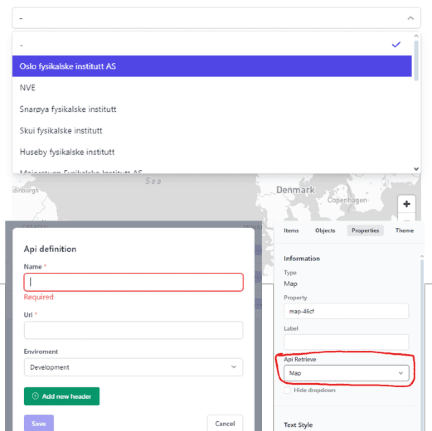
Add a new API definition from the API tab, add a API with the code on it (https://faas-ams3-2a2df116.doserverless.co/api/v1/web/fn-875f7dde-eba8-447d-a54a-6101f2a574de/default/map_locations).
Now set the Api retrieve of your map element to the API you added.
Filling elements with API
To create a Smartform and fill it with data through a POST API, use the URL https://api.smartforms.metaforce.net/Integrations/dialog/json. Set up a POST request to the URL and authorize it as shown in the API documentation. To update or fill the elements in the form, include a JSON body to update or fill the elements:
📝 Note: You need to add authentication from bearer token for the examples to work.
Textline / Headline
This API allows you to set values for Textline and Headline elements in a form. The Textline and Headline components are used for displaying static text or titles.
curl --location 'https://api.smartforms.metaforce.net/Integrations/dialog/json' --header 'Content-Type: application/json' --header 'Authorization: ' --data '{
"dialogDefinitionId": "653689ddc3332022ee018626",
"values": {
  "Textline": "Your text here",
  "Headline": "Your headline here"
}
}'
Input line / Input area
This API allows you to set values for Input Line and Input Area elements in a form. These components are used to capture user input.
curl --location 'https://api.smartforms.metaforce.net/Integrations/dialog/json' --header 'Content-Type: application/json' --header 'Authorization: ' --data '{
"dialogDefinitionId": "653689ddc3332022ee018626",
"values": {
  "InputLine": "Input data here",
  "InputArea": "More detailed input data here"
}
}'
Timepicker / Datepicker
This API allows you to set enter values for Timepicker and Datepicker elements. The Timepicker uses a 24-hour time format, and the Datepicker uses ISO 8601 date-time format.
curl --location 'https://api.smartforms.metaforce.net/Integrations/dialog/json' --header 'Content-Type: application/json' --header 'Authorization: ' --data '{
"dialogDefinitionId": "6697afe9b039be06934828bc",
"values": {
    "Timerpicker":"15:13",
    "Datepicker":"2024-07-18T22:00:00.000Z"
}
} '- Ensure that the
Timepickervalue follows the 24-hour time format (HH:mm). - Ensure that the
Datepickervalue follows the ISO 8601 date-time format (YYYY-MM-DDTHH:mm:ss.sssZ).
Checkbox / Switch
This API allows you to set values for Checkbox and Switch elements. Both components can have two states: on (true) or off (false).
curl --location 'https://api.smartforms.metaforce.net/Integrations/dialog/json' --header 'Content-Type: application/json' --header 'Authorization: ' --data '{
"dialogDefinitionId": "6697afe9b039be06934828bc",
"values": {
    "Checkbox":true,
    "Switch":false
}
} '- Ensure that the
CheckboxandSwitchvalues are boolean (trueorfalse).
Dropdown
This API allows you to set the value of a Dropdown element. For the Dropdown, you need to provide the exact value of the item you want to choose.
curl --location 'https://api.smartforms.metaforce.net/Integrations/dialog/json' --header 'Content-Type: application/json' --header 'Authorization: ' --data '{
"dialogDefinitionId": "6697afe9b039be06934828bc",
"values": {
    "dropdown":"value3"
}
} '- Ensure that the
Dropdownvalue is a valid option within the dropdown menu.
Radio button
This API allows you to set values for Radio button elements. Each radiobutton can either be true (selected) or false (not selected). Only one radiobutton can be selected at a time within a group.
curl --location 'https://api.smartforms.metaforce.net/Integrations/dialog/json' --header 'Content-Type: application/json' --header 'Authorization: ' --data '{
"dialogDefinitionId": "6697afe9b039be06934828bc",
"values": {
    "radiobutton1":false,
    "radiobutton2":true
}
} '- Ensure that only one radio button is set to
truewithin each row.
List
This API allows you to set a value for a List elements. For the List element, you need to specify the exact value of the item you want to choose from the available options.
curl --location 'https://api.smartforms.metaforce.net/Integrations/dialog/json' --header 'Content-Type: application/json' --header 'Authorization: ' --data '{
"dialogDefinitionId": "6697afe9b039be06934828bc",
"values": {
  "list":"value2"
}
}'- Ensure that the value provided in the
listfield matches one of the available options for the List.
Smart Table
This API allows you to set values for a Smart Table element. The Smart Table can include multiple rows with various elements, text, dropdown, checkbox, and date. The example below shows how to fill out 2 rows with all the elements, to fill out more rows add more sections as shown.
curl --location 'https://api.smartforms.metaforce.net/Integrations/dialog/json' --header 'Content-Type: application/json' --header 'Authorization: ' --data '{
"dialogDefinitionId": "6697afe9b039be06934828bc",
"values": {
  "smartTable-e3f0": [
    {
      "Text": "PewPewPew",
      "Dropdown": "Option 1",
      "Checkbox": true,
      "Date": "2024-07-19"
    },
    {
      "Text": "Pew",
      "Dropdown": "Option 3",
      "Checkbox": false,
      "Date": "2024-04-19"
    }
  ]
}
}
'- Ensure that the
Dropdownvalue matches one of the available options in the Smart Table. - The
Dateshould be in theYYYY-MM-DDformat.
Fetching Data from Smartform Elements
Smartform provides two API endpoints to retrieve submitted form data from elements within a dialog. These endpoints are especially useful when processing incoming webhooks, integrations, or external API consumers.
| API Purpose | Endpoint Pattern | Supported Elements |
|---|---|---|
| 1 Fetch element value | /dialogvalues/{dialogId}/property/{property}/value | Most elements except file uploads |
| 2 Fetch uploaded file | /dialogvalues/{dialogId}/file/{fileId} | File Upload only |
1️ General Element Value API
Used to fetch values for most elements, such as bitmap images, signatures, checkboxes, text fields, and dropdowns.
Endpoint
https://api.smartforms.metaforce.net/api/dialogvalues/{dialogId}/property/{property}/value (GET)
Description
Retrieves the value for a specific element within a Smartform dialog.
❗️This API does not support file uploads, Smart Tables, or Matrix elements.
Supported Element Types
| Element Type |
|---|
| Bitmap |
| Resource |
| Signature |
| Text Field |
| Dropdown |
| Checkbox |
| Radio Button |
| Time Picker |
| Date Picker |
Path Parameters
| Parameter | Description |
|---|---|
dialogId | The unique ID of the submitted Smartform dialog |
propertyId | The element’s unique property ID (e.g. signature-0d97) |
Request Example
curl --location 'https://api.smartforms.metaforce.net/api/dialogvalues/681b477eb12e24926fc0c98b/property/bitmatp-0d97/value' --header 'Authorization: Bearer <your_token>'Response Example
{
  "value": "iVBORw0KGgoAAAANSUhEUgAAAoAAAAHgCAIAAADTV9n8AAAAmklEQVR4n..."
}
2️ File Upload Value API
Used to fetch uploaded files (e.g., documents, PDFs, images) from Smartform’s file upload elements.
Endpoint
https://api.smartforms.metaforce.net/api/dialogvalues/{dialogId}/file/{fileId} (GET)
Description
Retrieves the actual file content that was uploaded via a file upload element.
📝 The
fileIdis returned as part of the webhook payload under theValuessection or the flattenedfileUpload-{id}object.
Path Parameters
| Parameter | Description |
|---|---|
dialogId | The unique ID of the submitted Smartform dialog |
fileId | The unique ID of the uploaded file (e.g., 6822f4af5d7c73f07f30b8e3) |
Request Example
curl --location 'https://api.smartforms.metaforce.net/api/dialogvalues/681b477eb12e24926fc0c98b/file/6822f4af5d7c73f07f30b8e3' --header 'Authorization: Bearer <your_token>'Response
Returns the binary content of the uploaded file. This is not a JSON response, but raw file data (e.g., PDF, PNG, DOCX).
The response includes relevant HTTP headers:
- Content-Type – the MIME type of the file (e.g., application/pdf, image/png)
- Content-Disposition – may include the original filename