Tips
Here are some practical tips for creating clear, consistent, and user-friendly Smartforms and Dialogs.
Columns and mobile layout
When placing elements side by side, use columns within the same row.
To improve spacing and avoid overlapping elements:
- Make sure Column is selected in the toolbar on the Design page
- Select the column you want to adjust
- Open Properties
- Set Padding (for example
10)
This creates proper spacing and improves usability, especially on mobile devices.
You can also use Span to control the width of each column.
Formatting text with BBCode
You can use BBCode to format parts of text in labels and text elements.
📝 Note:
Use the built-in formatting options (Bold, Italic, or Underline) in the Properties panel if you want to style the entire text.
Use BBCode only when you want to format part of the text.
Supported tags
| Tag | Description | Example | Output |
|---|---|---|---|
[b] | Bold text | [b]Bold[/b] | Bold |
[i] | Italic text | [i]Italic[/i] | Italic |
[u] | Underlined text | [u]Underline[/u] | Underline |
💡 Tip:
Always close tags correctly. If not, the formatting will not be applied.
Combining styles
You can combine styles by nesting tags.
Example:
[b][i]Bold and Italic[/i][/b]
This will render as: Bold and Italic
Example with multiple styles:
[b]This part will be bold [/b][b][u]and this part is bold and underline[/u][/b]
This will render as: This part will be bold and this part is bold and underline
🔄 The order of opening and closing tags matters when combining styles.
Where you can use BBCode
BBCode formatting works in:
- Labels
- Text elements
It does not apply to user input fields.
Customizing the authentication screen
You can require users to authenticate before accessing a Smartform.
Supported methods include:
- SMS
- BankID
This helps ensure that only authorized users can access the Smartform.
Configure authentication
- Go to Templates → Authentication
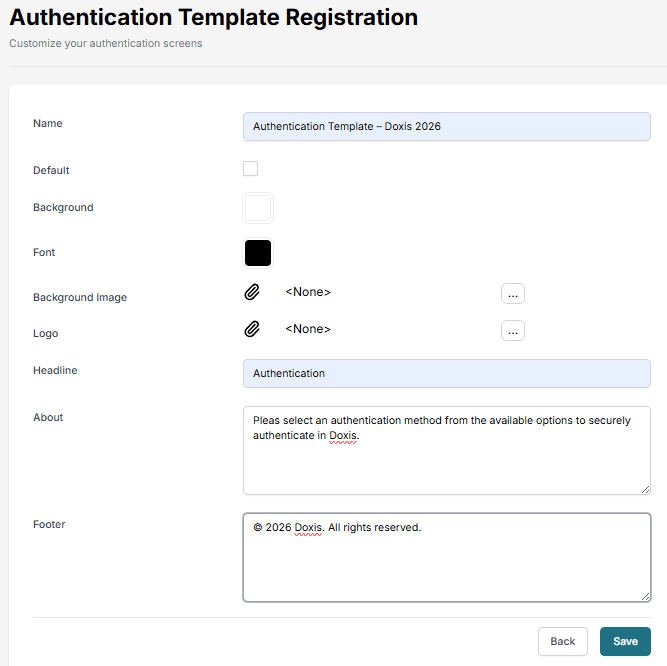
- Open an existing template or create a new one
- Configure the content and settings
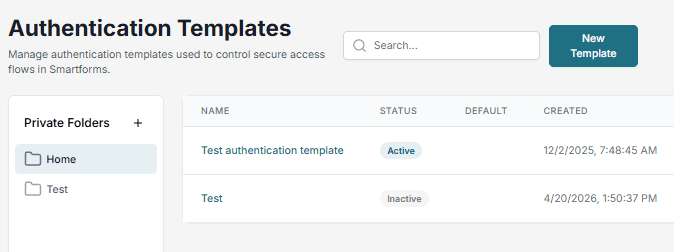
After configuring:
- Go to your Smartform
- Select the authentication template
- Add authentication in the Process settings to make it required
Integrations (Examples)
Smartforms can be integrated with external systems using APIs and workflows.
Integration: Slack
Send Smartform results directly to a Slack channel.
Video that shows integration to Slack (will come soon)
Integration: Monday CRM
Connect Smartforms with Monday CRM.
Video that shows integration to Monday CRM (will come soon)
Integration: HubSpot CRM
Send data from Smartforms to HubSpot.
Video that shows integration to HubSpot (will come soon)
HubSpot API setup
The following endpoints are used:
-
Create contact:
https://api.hubapi.com/crm/v3/objects/contacts -
Create task:
https://api.hubapi.com/crm/v3/objects/tasks
Workflow setup
- Use JSON as the request body
- Set No Authentication
- Add header:
Authorization: Bearer <token>
Example of JSON for creating a task associated with a contact in HubSpot:
{
  "properties": {
    "hs_task_body": "Send Proposal",
    "hs_timestamp": "2019-10-30T03:30:17.883Z",
    "hs_task_status": "WAITING",
    "hs_task_subject": "Follow-up for Doxis",
    "hs_task_priority": "HIGH"
  },
  "associations": [
    {
      "to": {
        "id": "751"
      },
      "types": [
        {
          "associationCategory": "HUBSPOT_DEFINED",
          "associationTypeId": 204
        }
      ]
    }
  ]
}
Example of JSON for creating a contact in HubSpot:
{
  "properties":
    {
      "email": "p@gmail.com",
      "firstname": "Pete",
      "lastname": "Peterson",
      "website": "www.doxis.com",
      "company": "Doxis",
      "phone": "+47 999 999 44",
      "address": "Street 1",
      "city": "Ohio",
       "zip": "123123"
    }
}