Tips
Here are some valuable tips on how to make good-looking Smartforms and Dialogs.
Columns and Mobile
If you need to organize your screen into columns, you can use padding to ensure elements in two columns on the same row don’t overlap. This will also create the best user experience when accessing the Smartform from a smartphone. To change column properties, mark sure Column is selected on the toolbar menu on the design page before selecting the column you want to make changes to. Click on properties and change the padding to, for instance, 10. You have now separated the elements into two columns on the same row. You can also use Span to make one column wider than the other.
Formatting Text with BBCode
To improve readability and layout in your Smartforms, you can use BBCode to format text in labels, paragraphs, and other static text fields.
Smartform supports a simplified version of BBCode that lets you easily apply basic formatting like bold, italic, and underline—without needing any coding experience.
📝 Note: For full styling of a label or text element, you can use the built-in checkboxes in the Properties panel to apply Bold, Italic, or Underline. Use BBCode only when you want to format part of the text, such as highlighting a specific word or phrase within a sentence.
Supported Tags
Here are the BBCode tags currently supported:
| Tag | Description | Example | Output |
|---|---|---|---|
[b] | Bold text | [b]Bold[/b] | Bold |
[i] | Italic text | [i]Italic[/i] | Italic |
[u] | Underlined text | [u]Underline[/u] | Underline |
💡 Tip: Always close the tag with the correct closing format —
[/b],[/i], or[/u]. If tags are not closed properly, they won’t be rendered.
Combining Styles
You can also combine different styles by nesting the tags. Here’s an example:
[b][i]Bold and Italic[/i][/b]This will render as: Bold and Italic
When combinding different styles next to each other, make sure to close the first style and open a new tag for the next style:
[b]This part will be bold [/b][b][u]and this part is bold and underline[/u][/b]This will render as: This part will be bold and this part is bold and underline
🔄 The order of opening and closing tags matters when combining multiple styles.
Where You Can Use BBCode
BBCode formatting works in most labels or text fields, including:
- Labels
- Text elements
It does not apply to user input fields.
Customizing the Authentication screen
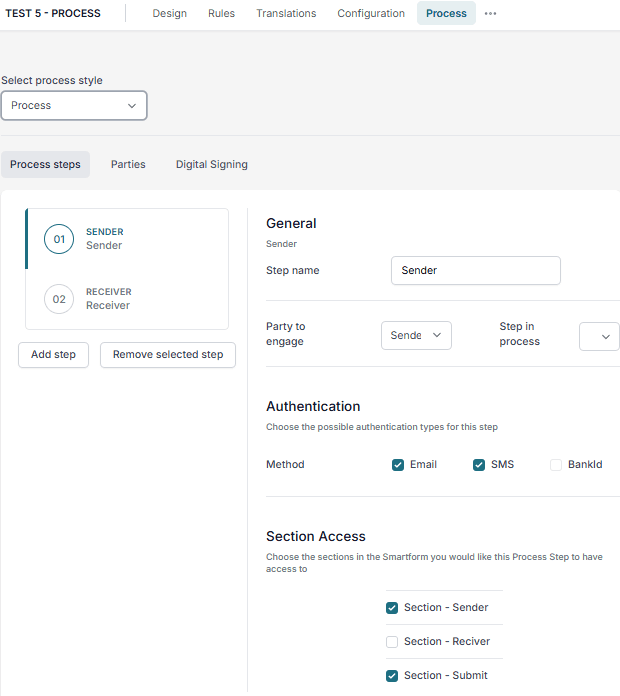
As a designer/developer, you can make it mandatory for a Recipient to use SMS, e-mail, or BankID as the authentication method for opening a Smartform. This is a critical function for enhancing the security in the dialogs with your recipients. BankID authentication is recognized by date of birth. This is not 100% secure, but it is a good option when you don’t need the full social security number. We use Verisign for BankID authentication. Eventually, you will be able to use the e-signature provider of your choice.
Back to customizing the authentication screen. This screen will appear when the tries to access a Smartform. To customize the authentication screen, go to authentication in the Template section.
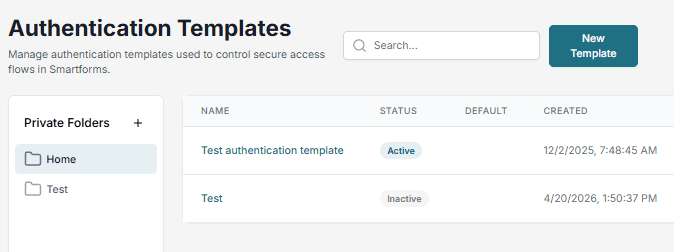
Click on the Authentication template you would like to change or create a new one. Fill in all the required details to control the content of the authentication screen.
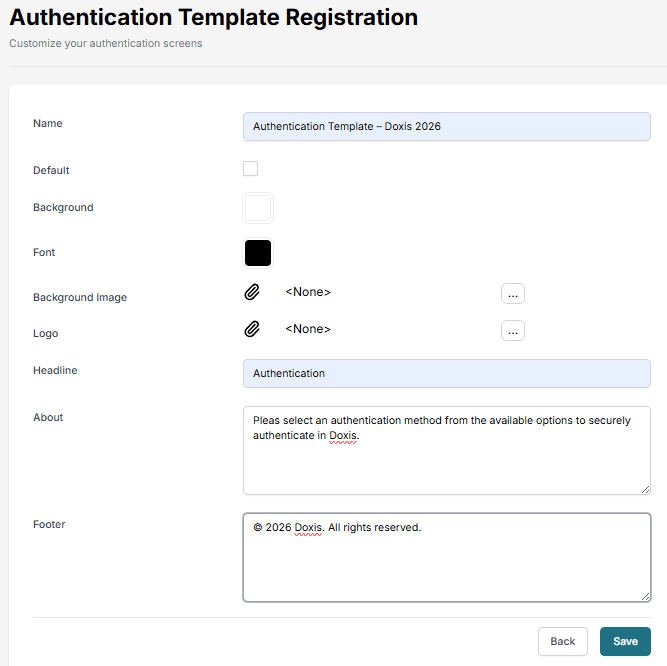
When completed, go to your Smartform and select the authentication template
The final step is adding a process to the Smartform. Make authentication mandatory to see or change the content.
Example : Integration to Slack
We have made a video that shows how the results from a Smartform can be posted into a channel in Slack.
Video that shows integration to Slack
Example : Integration to Monday CRM
Monday CRM is a popular CRM system and this video shows how it can be integrated with Smartforms
Video that shows integration to Monday CRM
Example : Integration to HubSpot CRM
HubSpot is a popular CRM system and this video shows how it can be integrated with Smartforms.
Video that shows integration to HubSpot
We are using these API endpoints from HubSpot in the demo:
Creating contact: https://api.hubapi.com/crm/v3/objects/contacts
Creating Task for contact: https://api.hubapi.com/crm/v3/objects/tasks
When you are setting this up in Workflow you should use JSON as body and set No Authentication and then define Authorization as Bearer token in the header.
Example of JSON for creating a task associated with a contact in HubSpot:
{
  "properties": {
    "hs_task_body": "Send Proposal",
    "hs_timestamp": "2019-10-30T03:30:17.883Z",
    "hs_task_status": "WAITING",
    "hs_task_subject": "Follow-up for Doxis",
    "hs_task_priority": "HIGH"
  },
  "associations": [
    {
      "to": {
        "id": "751"
      },
      "types": [
        {
          "associationCategory": "HUBSPOT_DEFINED",
          "associationTypeId": 204
        } ]
    }
  ]
}
Example of JSON for creating a contact in HubSpot:
{
  "properties":
    {
      "email": "p@gmail.com",
      "firstname": "Pete",
      "lastname": "Peterson",
      "website": "Doxis.com",
      "company": "Doxis",
      "phone": "+47 999 999 44",
      "address": "Street 1",
      "city": "Ohio",
       "zip": "123123"
    }
}