Styles
Note: The URL referenced later on this page points to Production. If you’re integrating against Sandbox or Staging, use your environment’s equivalent host instead of copying it directly - check with your Doxis contact if you’re unsure of the exact host for your environment.
The Styles page allows you to create and manage reusable text styles used in the Text Library and the Editor.
Styles ensure consistent formatting across documents and make it easy to apply predefined typography.
Purpose of Styles
Styles help you:
- Maintain consistent formatting across documents
- Apply brand guidelines (fonts, colors, alignment)
- Reduce manual formatting
- Provide easy-to-use styling options for editors
- Create a clear text hierarchy (headings, paragraphs, quotes, lists)
Styles Overview
The style list displays:
- Style name
- Style type
- Sample
- Created/updated information
Available actions:
- Edit – Modify a style
- Delete – Remove a style from future use
Search
Use the search field to find styles by name, type, or font family.
View modes
Switch between grid and list view depending on your preference.
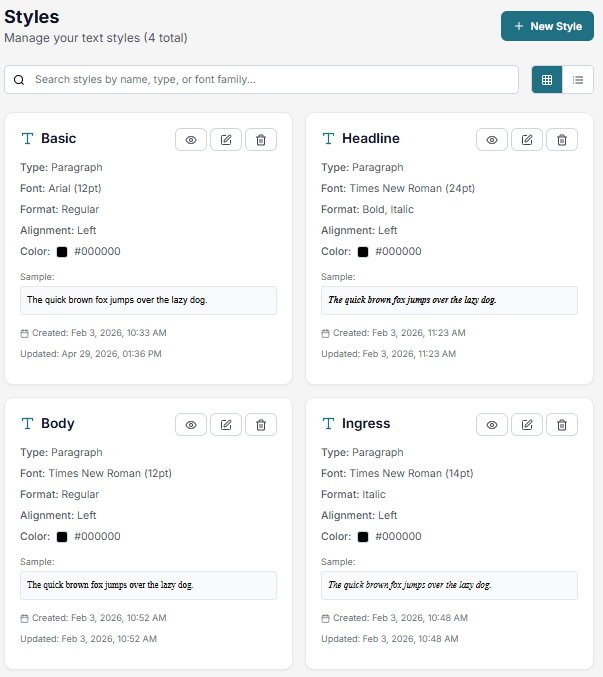
Each style is displayed as a card with formatting details and a live sample.
Create a Style
Click + New Style to open the style configuration page.
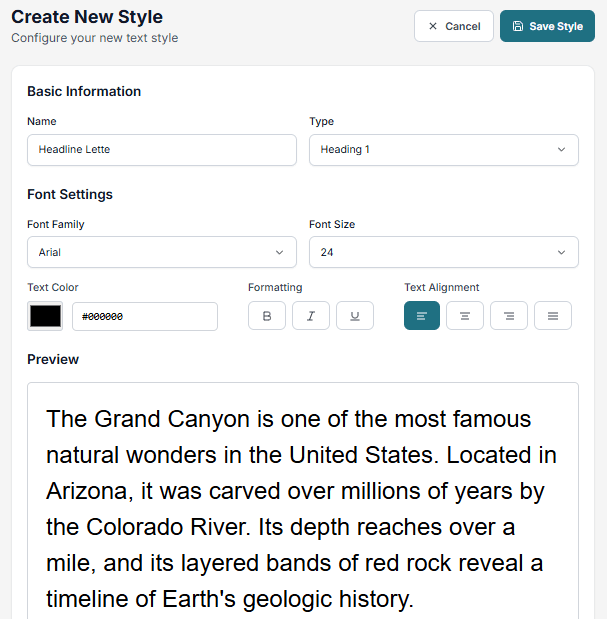
Basic settings
- Name (required) – Use clear names like Title, Body Text, or Note
- Type – Defines the role of the style (e.g., paragraph or heading)
Font settings
Font family
Select the font for the style.
📝 Only supported fonts can be used. Contact your system administrator if needed.
The list of available fonts can be read from the API:https://api.webeditor.metaforce.net/Development/getinfo
Font size
Set the text size (e.g., 12, 14, 18).
Text color
Choose a color or use a hex value.
Colors can also be managed in the Colors tab.
Formatting
Set default formatting:
- Bold
- Italic
- Underline
Text alignment
- Left
- Center
- Right
- Justified
Preview
A live preview updates as you configure the style, so you can see the result before saving.
Save and use
Click Save Style to make it available in:
- The Text Library
- The Editor
The style will appear in the Styles dropdown in the editor.
Edit or delete
- Edit – Update settings and save
- Delete – Remove the style from future use
Changes apply to newly formatted text and may not update existing content automatically.
Best practices
- Use short and descriptive names
- Keep naming consistent
- Avoid creating too many similar styles
- Use styles instead of manual formatting
- Define heading styles early when building documents
- Use the Colors tab to maintain consistency
Related
- Text Library
- Groups
- Table Styles
- Colors
- Using Styles in the Editor