Team
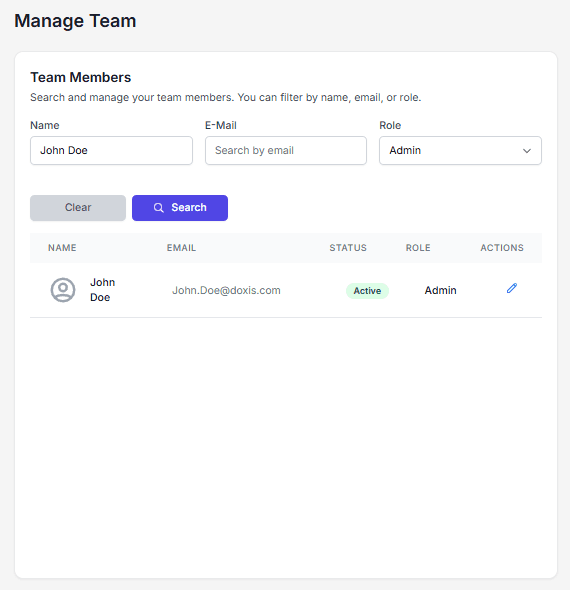
The Team section in Administration is where you manage users, roles, and access within your Doxis Doc Gen environment.
As an administrator, you can invite users, assign roles, manage access, and control how users interact with the platform.
Manage Team
In Manage, you can:
- Update user roles and permissions
- Remove users from your organization
- Control access to your Doc Gen environment
User accounts are personal, but access is managed at the organization level.
Invite users
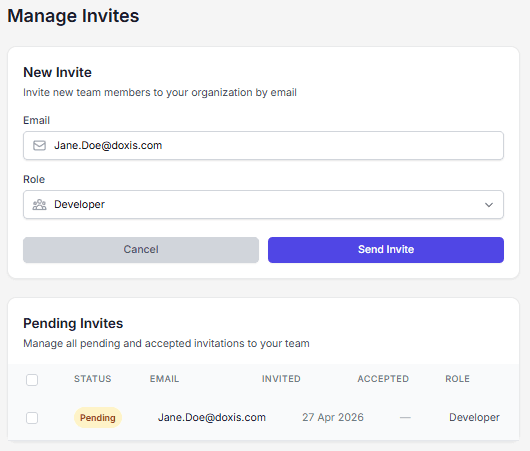
To invite a user:
- Go to Administration → Team → Invite
- Enter the user’s email address
- Select a role
- Send the invitation
The user will receive an email with access instructions.
If they are new to Doc Gen, they will be prompted to complete their profile.
Invite status
| Status | Description |
|---|---|
| User | Already exists in Doc Gen and is invited to your organization |
| Pending | Not yet registered and must complete registration before accessing the app |
Roles
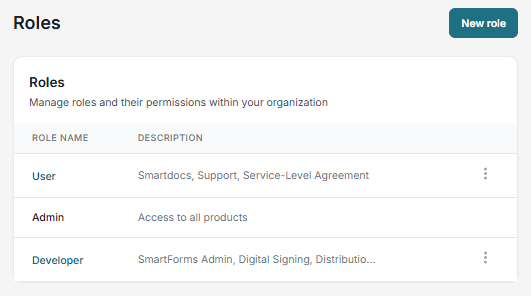
In Roles, you define what users can access in Doc Gen.
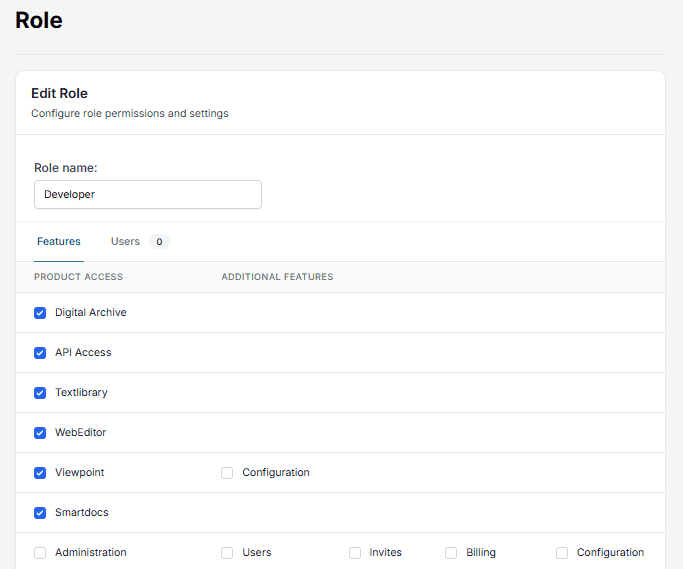
Roles control:
- Available applications (e.g., Studio, Workflow, Support)
- Permissions and actions
- Access to specific features
You can:
- Create new roles
- Edit existing roles
- Customize permissions per role
Access groups
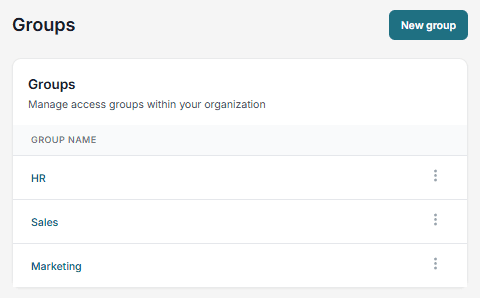
The Access section allows you to organize users into groups (e.g., HR, Sales, Marketing).
Groups are used to assign permissions and control access to features.
You can:
- Create new groups
- Assign users to groups
- Delete groups when no longer needed
Integration
The Integration section includes setup for external identity providers such as Azure AD.
Azure AD Integration
The Azure AD Integration allows you to connect your organization’s Azure Active Directory to Doc Gen for centralized user and access management.
Connect to Azure AD
- Go to Administration → Integration
- Select Azure AD Integration
- Click Connect to Azure AD
- Complete the authentication process
Once connected, your tenant (e.g., doxis.com) will be displayed.
Integration settings
Auto invite
- Automatically invite users from your Azure AD tenant when they log in
Block manual invitations
- Disable manual invites
- Use when all access is managed via Azure AD
App roles
Available roles are retrieved from Azure AD, for example:
- Admin
- Developer
- User
- Content Manager
- Auditor
These roles can be mapped to roles in Doc Gen.
Role mapping
To control access:
- Assign a role in Azure AD (e.g., Developer)
- Map it to a Doc Gen role
- The Doc Gen role defines permissions and access
Configure roles
Permissions
Define what users can do:
- Access modules (Workflow, Studio, Support)
- Create, edit, or delete content
- Perform admin actions
Product access
Control which products are available:
- Enable or disable modules
- Restrict access per role
Role settings
Customize:
- Default access
- Visibility
- Feature restrictions
Example flow
- A user is assigned Developer in Azure AD
- The role is mapped to a Doc Gen role
- The user gains:
- Access to Workflow
- API configuration permissions
- Defined access level
When the user logs in, access is applied automatically.
Best practices
- Use Azure AD as the single source of truth
- Keep Doc Gen roles focused on permissions
- Avoid manual invites when using Azure AD
- Review role mappings regularly
Disconnect Azure AD
- Go to Administration → Integration
- Click Disconnect Azure AD
⚠️ This stops synchronization of users and roles from Azure AD.